Microsoft Teams App Installation
Overview
primedocs web can be called directly from Teams.
App
It is possible to use primedocs directly as an App. Created documents are then automatically saved in the user's OneDrive.
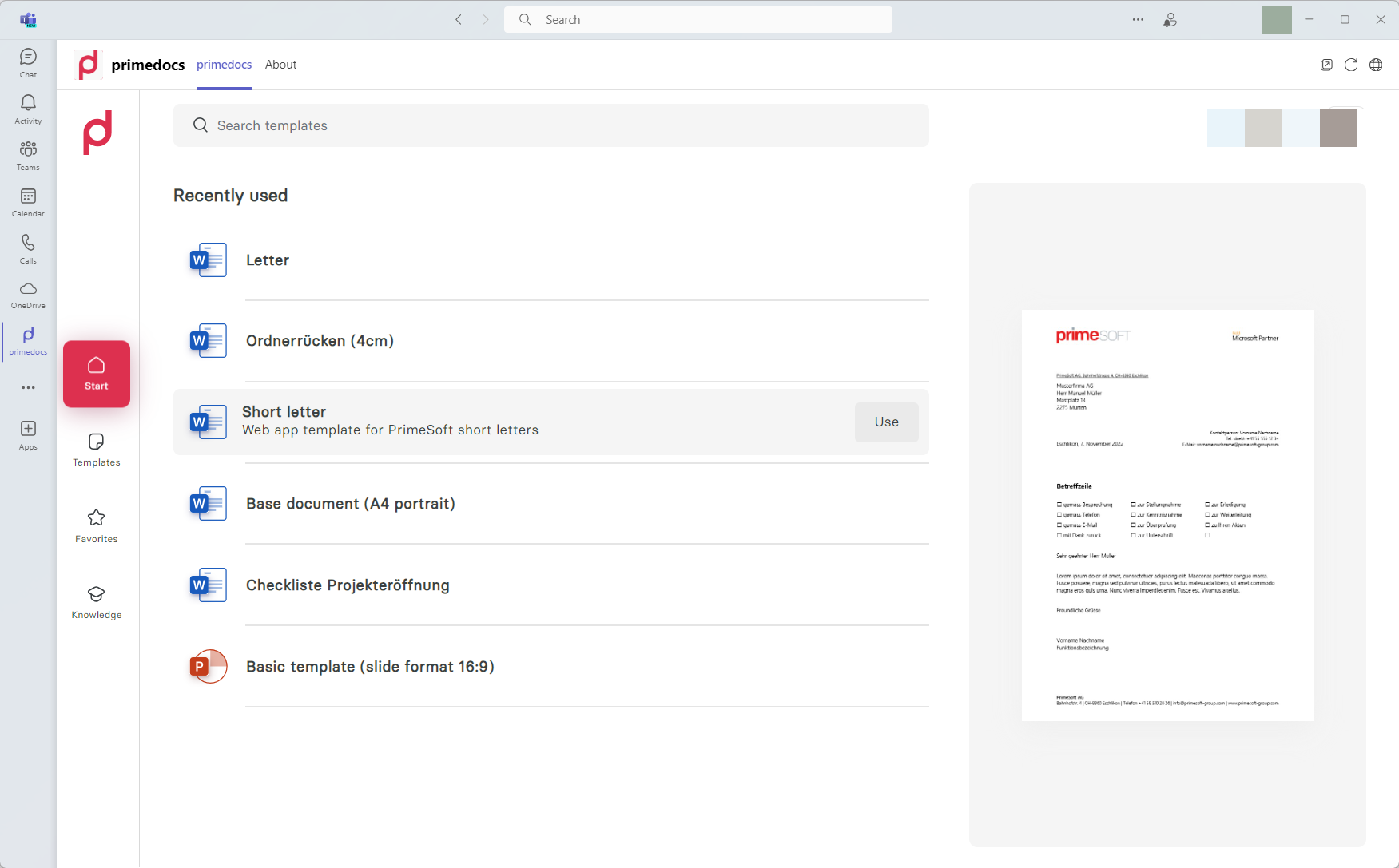
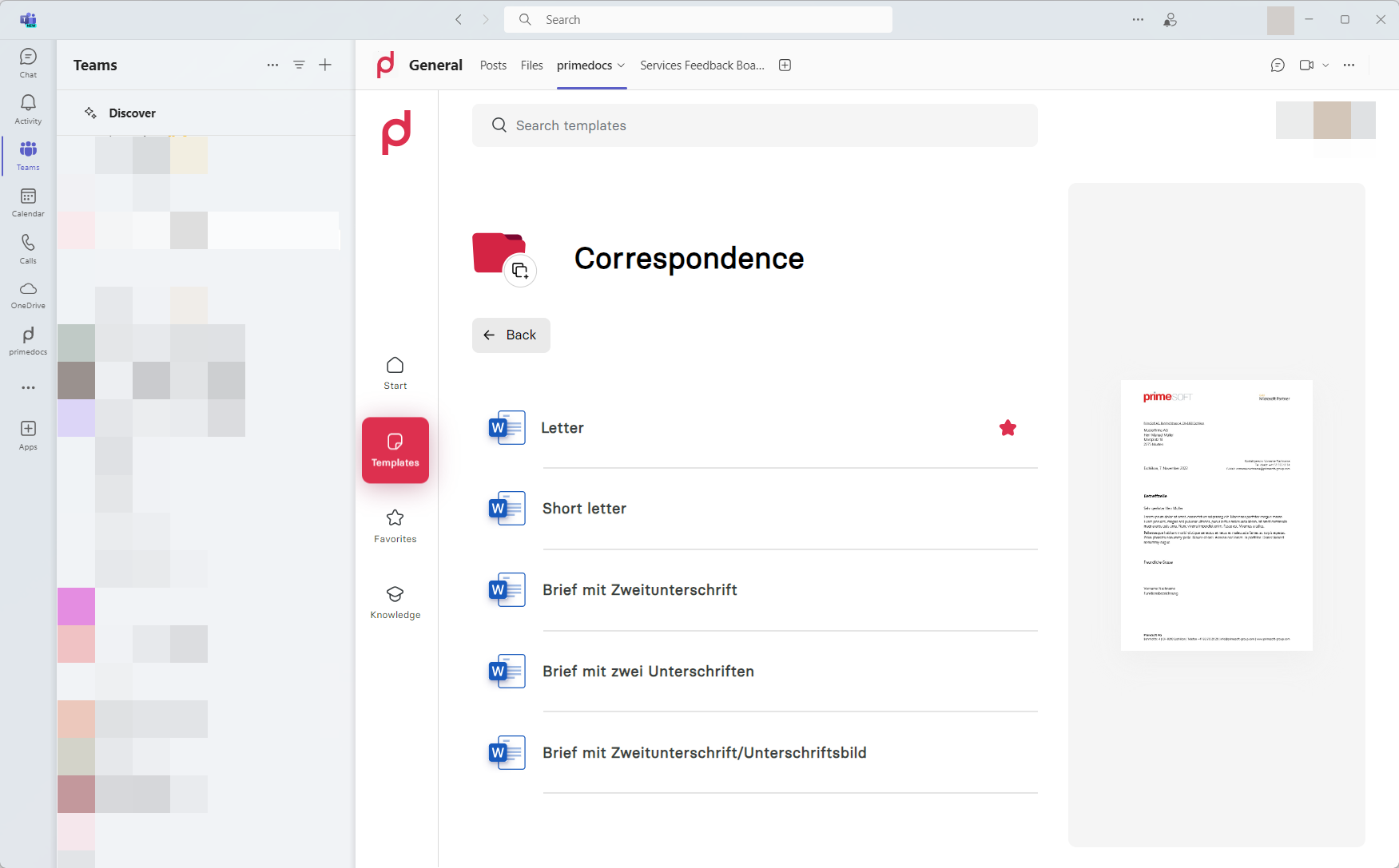
Channel-Tab
primedocs web can also be used as a Channel tab. The documents created are then saved in the channel:
Installation
To be able to use the Teams app or the Channel tab, certain requirements must be met.
Requirements
- The Teams app only works with Office 365 / Entra Id (Alt: Azure Active Directory) logins, as generated files are stored in the user's name.
- The Entra ID App Registration needs the scopes
Sites.Read.All,Files.ReadWrite.Allas delegate permissions. - Only web-enabled templates are supported.
Configure primedocs.config
The Teams app must be configured at primedocs.config
Any GUID can be used as the id.
<primedocs>
...
  <teams id="[GUID]" namePrefix="" />
</primedocs>
The namePrefix can be used if there are several environments. The AddIns are then named in the form {namePrefix} primedocs.
After changing the primedocs.config, the web applications should be restarted.
Generate Manifest
You can then generate the Team App Manifest via a link:
| Teams | https://your-url.example.com/app/api/manifest/teams |
Teams Admin App Installation
The generated manifest can then be uploaded and distributed via Microsoft Teams Administration.
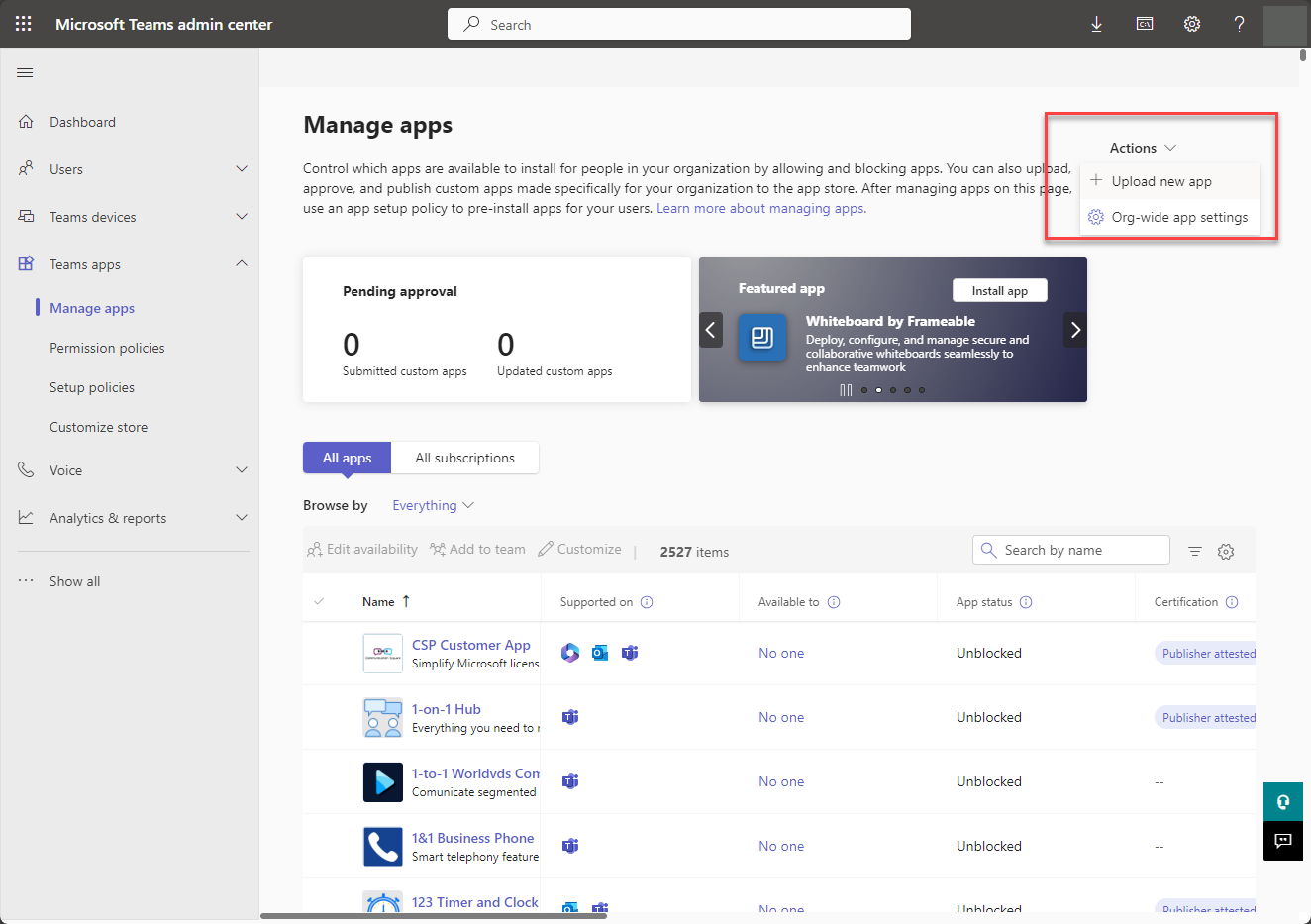
The rollout of the app may take some time.
The distribution and access management of the app is carried out exclusively via Microsoft Teams Administration.