E-mails and signatures in Outlook
primedocs brings your e-mails into the corporate design: e-mail templates with layout and signature, signatures by profile and language, campaign banners and snippets. There are two Outlook variants with different add-ins. You recognise which one you use by the interface.
Applies to: classic Outlook on Windows with primedocs Desktop (COM add-in), as well as new Outlook, Outlook in the browser and Outlook on the Mac with the web add-in.
- Classic Outlook
- New Outlook, web add-in
E-mail from a template
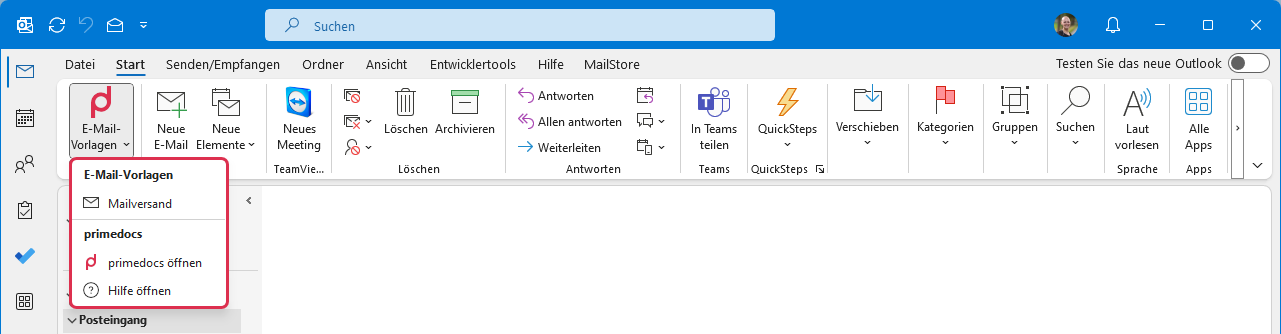
The Outlook main window has the E-mail templates button with the primedocs logo. Clicking it opens the available e-mail templates as well as Open primedocs and Open help. Choose a template, fill in the properties dialog, and the message opens with layout and signature.
Choosing a signature
In a new message the primedocs tab shows the Signatures menu: the primedocs signatures of your profiles (for example internal, external, reply external) and the classic Outlook signatures.
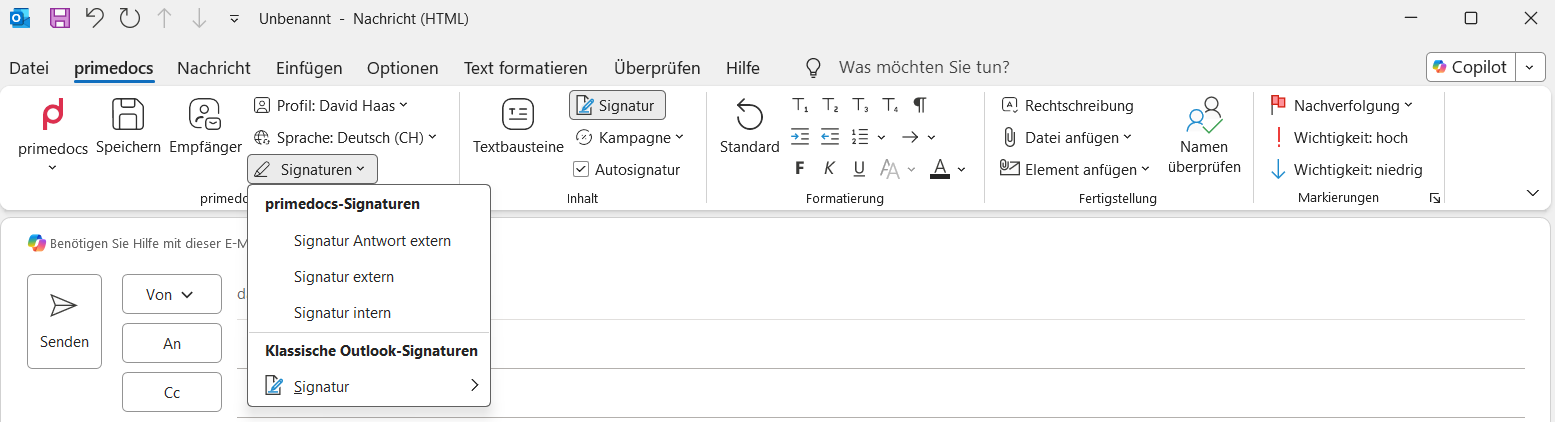
- Signature shows or hides the signature.
- Profile and Language change sender and language of the signature.
- Auto signature checks the recipients: only internal addresses result in the internal signature, but as soon as an external address is involved, primedocs switches to the external signature.
Campaign
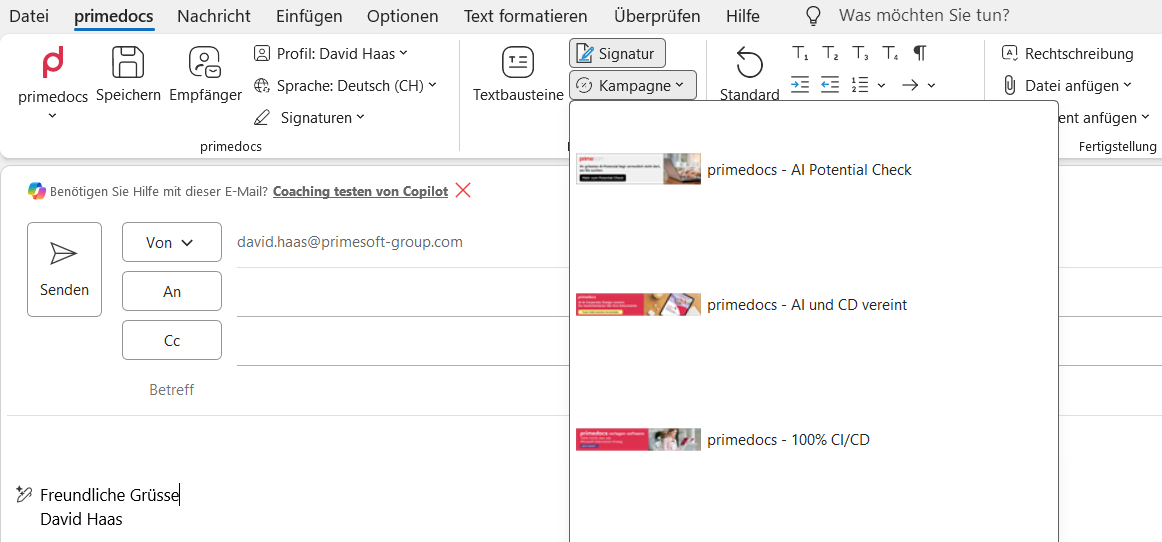
Campaign attaches a campaign banner to the signature, for example for an event or a product. The menu shows a preview of the available banners. Which campaigns are available is controlled by your organisation by period and target group.
Classification and sensitivity
- Classification adds a defined marking such as "Internal" or "Confidential" to the subject. Appears only if your organisation has set up classifications.
- Sensitivity sets the sensitivity level of the message.
Snippets and format
Snippets opens the same snippet pane as in Word, see Inserting and managing snippets. The Formatting group offers titles, styles and design colours in the corporate design. Standard resets a paragraph. All buttons: Outlook ribbon reference.
Opening the add-in
In a new message, click the button with the primedocs logo in the ribbon. The side pane (task pane) opens with the Signatures and Snippets areas. It behaves the same in the desktop app, in the browser and on the Mac.
Inserting a signature
If your organisation has set up automatic insertion and you are signed in to the add-in, the signature is already in the message. After signing out, sign in to the add-in again. You then need the task pane only to choose a different signature:
- Under Selected language, choose the language of the message.
- Choose the profile if you have several.
- Under Select signature, choose the desired signature.
- Click Insert signature.
Which signatures appear follows from language and profile.
E-mail templates and snippets
Via the template overview in the task pane you create e-mails from templates. Favourites and Recently used are pinned rows at the top. E-mail templates have no live preview, only the preview image. Insert snippets via the Snippets area, see Inserting and managing snippets.
What is not here
Campaign, Classification and Auto signature as buttons are functions of the COM add-in in classic Outlook. In the web add-in your organisation controls the auto signature centrally.
If something does not work
| You see | What helps |
|---|---|
| The signature appears twice | Check whether Outlook also inserts its own signature automatically. If so, set it to "none" in Outlook's signature settings for new messages and replies. |
| The signature shows old details | Check the profile fields, see Profiles and deputisation. In classic Outlook additionally check the synchronisation of primedocs Desktop. |
| The wrong signature (internal instead of external), classic Outlook | Check that Auto signature is enabled and the recipient addresses are right. If needed, choose the appropriate signature in the Signatures menu. |
| No primedocs button in new Outlook | Restart Outlook. If it stays missing, have the deployment of the web add-in checked. |
| primedocs tab missing in classic Outlook | primedocs Desktop is not installed or the add-in is disabled. See Help and troubleshooting. |