Workbooks with Excel
A workbook created with primedocs carries your organisation's colours and fonts. The primedocs tab in Excel keeps sheets and charts in the design and brings foreign workbooks there too. Every button in detail: Excel ribbon reference.
Applies to: Excel on Windows with primedocs Desktop (Office COM add-in).

Changing details
Properties, Profile and Language work as in Word: reopen the properties dialog, switch sender, switch document language.
Applying the design
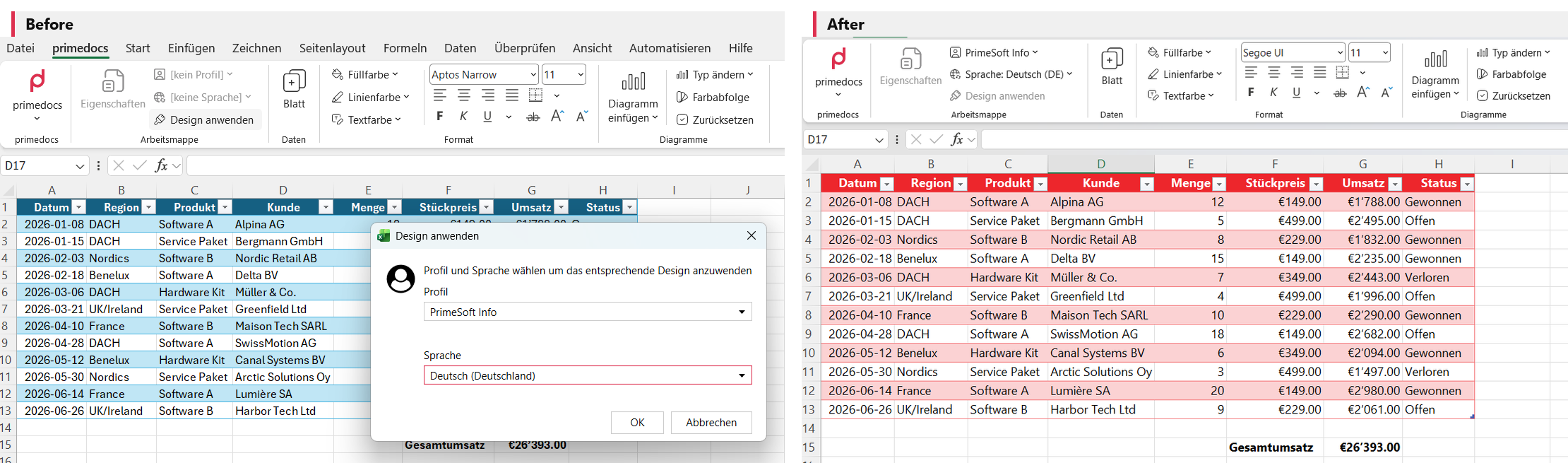
Apply theme transfers the design colours and fonts to the workbook, also to a workbook not created with primedocs. The button is active once profile and language are chosen and no cell is being edited.
Inserting a sheet
Sheet inserts a new worksheet with the correct colour and font theme.
Colours and format
Fill colour, Line colour and Text colour offer the colours of the corporate design. Text formatting (font, alignment, borders, bold, italic) corresponds to the Excel tools and is only here so you need not switch ribbons.
Charts
Insert chart creates a chart in the organisation's colour scheme. primedocs controls the colours more strictly than Excel. Change type switches the chart type, Colour sequence rotates the order of colours, Reset restores colours, fonts and other design settings.
Output
Output appears only if your organisation has set up output management and forwards the workbook according to the stored configuration.
If something does not work
| You see | What helps |
|---|---|
| Many buttons are greyed out | The workbook probably does not come from a primedocs template. Apply theme works anyway. |
| Apply theme is grey | Profile or language are missing, or a cell is still being edited (finish input with Enter). |
| Chart colours do not fit | Select the chart and click Reset. |