Settings and connected services
Here you change the interface and defaults for new documents: language of the menus, colour theme, start behaviour, default document language. What ends up in the documents is governed by profiles and the details on creation.
Applies to: primedocs Web and primedocs Desktop. The settings are separate per access point.
- primedocs Web
- primedocs Desktop
Settings
Click your name at the top right and choose Settings:
- UI language (the interface currently shows «UI Language»): language of menus and buttons.
- Document language: default for new documents (can be changed in the template form at any time).
- Colour theme: Light, Dark or System.
Confirm with Save. The colour theme survives reloading.
User settings
User & Profiles → User settings opens your user data (name, phone, e-mail, images). They apply to all profiles that inherit these values. What is maintained here and what in the profile: Profiles and deputisation.
Switching tenant
If your organisation works with several primedocs tenants, the user menu shows the entry Tenants. There you switch the instance. Templates and profiles of the other tenant appear afterwards.
Connected services
Some functions talk to other services in the background: sensitivity labels to Microsoft Purview, output to OneDrive, data interfaces to a business system (GEVER records management system such as CMI or Fabasoft, ERP, CRM). Under Integrations in the user menu you see which services you are signed in to, and sign in or out.
If an action requires a sign-in, the Sign-in required dialog appears with the affected services. Sign in, then Retry. In the template form the Sensitivity field then shows Authentication required. After signing in, click Reload.
Executions
Longer document creations run in the background. Executions in the user menu shows the status and finished results for download. Errors also appear as a message at the edge of the screen.
Help and version
About primedocs shows the version of your environment. If your organisation has stored a help link, it is also in the user menu, for example as primedocs Help.
Options
Switch to the primedocs tab and open Options:
- Languages: UI language of primedocs Desktop.
- Select skin: colour design of the application.
- Start automatically: primedocs Desktop starts with Windows and synchronises in the background. Recommended so that templates are always current.
- Hardware acceleration: uses the graphics acceleration of Windows.
Account
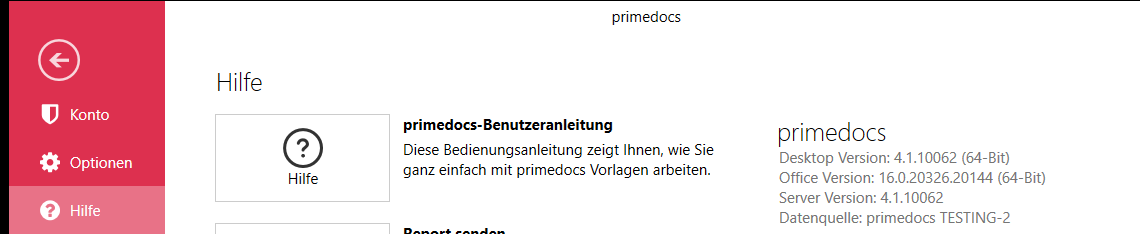
Under Account, the User information shows whether primedocs Desktop is connected to the server. Change data source switches the tenant (the primedocs instance) or resets the offline cache. This is a step for support, see Help and troubleshooting.
Help
- primedocs user guide opens this documentation.
- Send report packs log and diagnostic data for support.
- primedocs log files opens the log directory.
- Versions and connection shows Desktop, Office and server version, tenant («Data source») and server address. Offline, the server version reads "Unknown (Offline)".