Release 4.1.10084.0 (October 2026)
Release 4.1.10084.0 is the main version of the 2026 H2 half-year. It brings together the changes of feature releases 4.1.10020.0, 4.1.10056.0 and 4.1.10062.0 and adds everything delivered since. This page describes the changes since Feature Release 4.1.10062.0. The focus is on the new Web Admin, the redesigned web app, snippets in the Outlook web add-in and visual editors for fields and forms.
Highlights
The new Web Admin
Users, groups, roles and organizational units can now be managed in the browser, without installing anything on the workstation. Lists can be searched, filtered and exported, and detail pages bring the related information together. The Web Admin also covers the datasource settings, the connection to the directory and user synchronization, the roles for additional profiles, package export and import between environments, and analytics on usage and client versions. Templates, snippets and field definitions are still managed in the DataSourceAdminApp. Documentation.
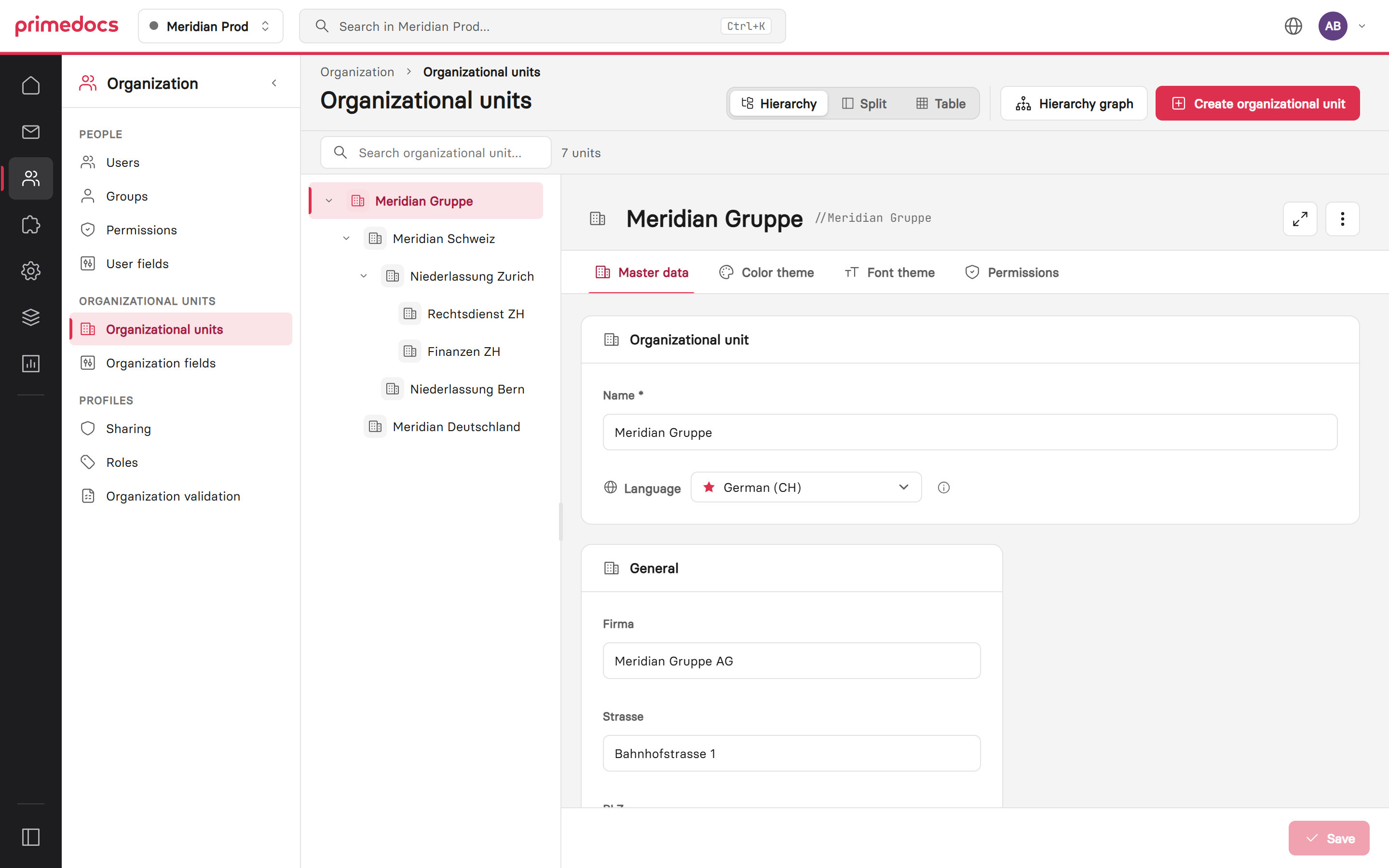
Organizational units in the Web Admin: hierarchy on the left, on the right the selected unit with the tabs Master data, Colour theme, Font theme and Permissions.
The redesigned web app
The web app has been fundamentally reworked. The start page shows favourites and recently used templates. Templates can be displayed as a list, as a grid with preview images or as a table, and can be filtered. Settings, profiles, integrations and tenants are grouped in a shared side panel. The interface is available in German, English, French and Italian and also adapts to the narrow task pane in Outlook. Documentation.
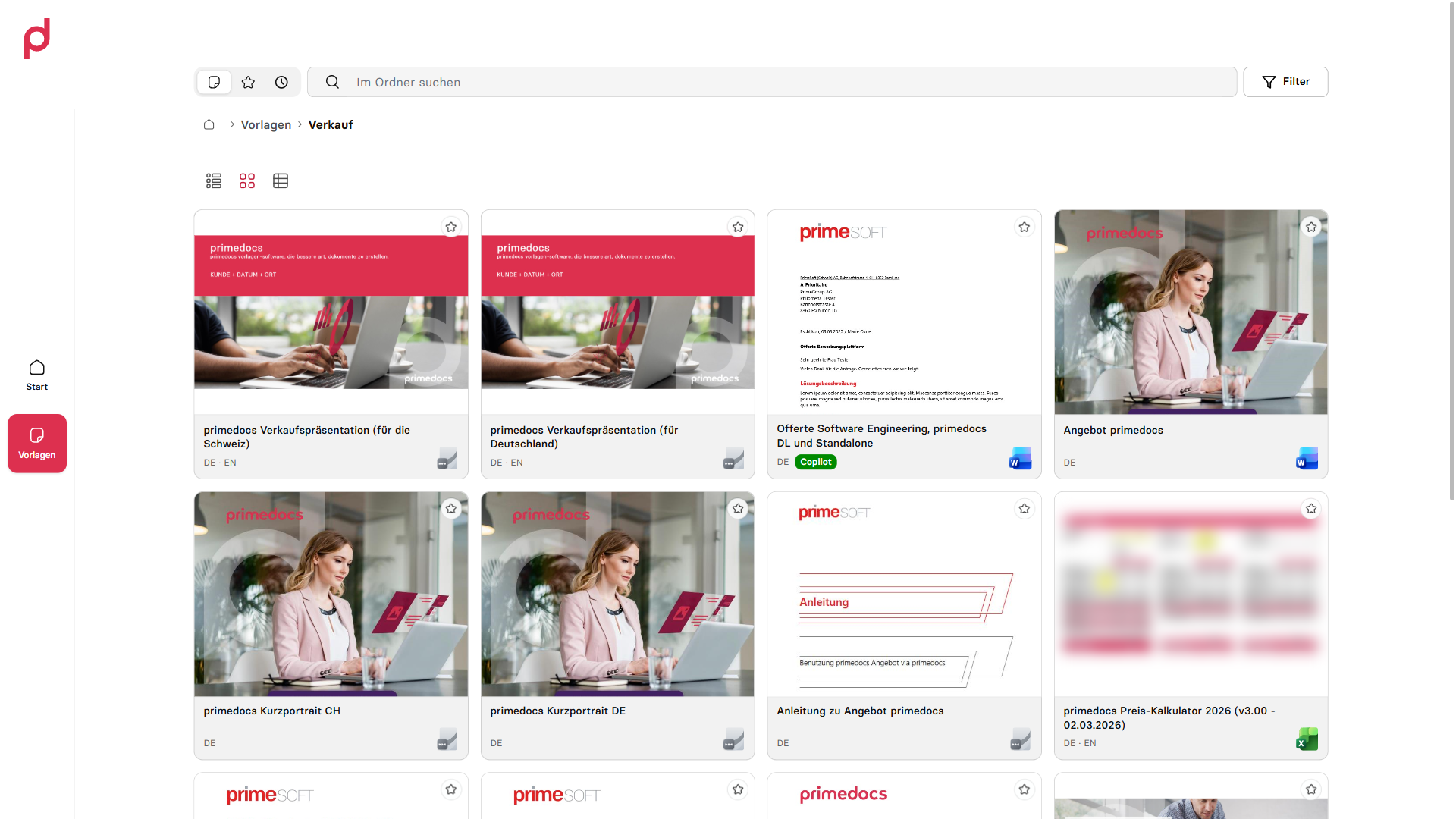
Template overview in grid view with preview image, languages and favourites.
Snippets in the Outlook web add-in
The Outlook web add-in now offers full snippet handling in Outlook (new), Outlook on the web and Outlook for Mac. Snippets can be searched and inserted, and created and edited directly in the add-in. A visual editor formats text, sets links and inserts images. Name, description and content are maintained per language, and a status indicator shows how complete each language version is. Snippet and system administrators define for each snippet which users and groups may use or edit it. In addition, the automatic signature now signs in on its own, so there is no need to sign in in the task pane first. Documentation.
Maintain shared profiles together
Profiles can now be shared with write access. When sharing, you can choose between «Read only» and «Read & edit». Existing shares remain read-only. This allows an assistant, for example, to maintain a manager's profile directly without anyone passing on credentials. Shared profiles are edited in the desktop client. In the web app, they appear in the profile navigation together with their owner. Documentation.
Edit fields and forms visually
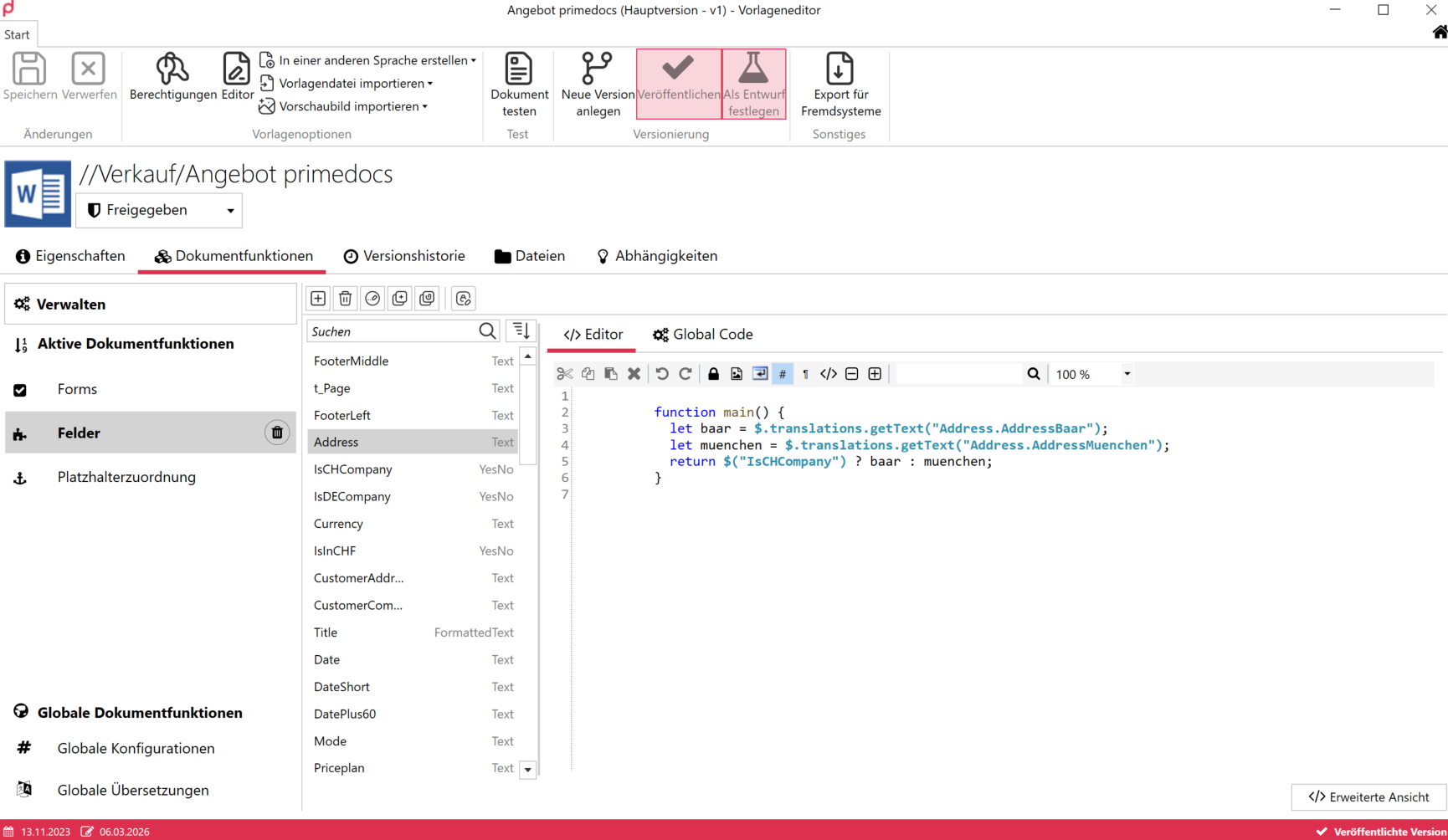
The Fields editor and the Forms editor can now also edit the schema of objects and object collections, across all levels. Fields can be reordered, duplicated and converted to another field type. Each field type comes with a code skeleton, and the code editor marks JavaScript syntax errors as you type. Documentation.
Long forms can be structured into collapsible groups with navigation between them. Groups from a global configuration can be reused across templates. This works in the desktop client and in the web app. Documentation.
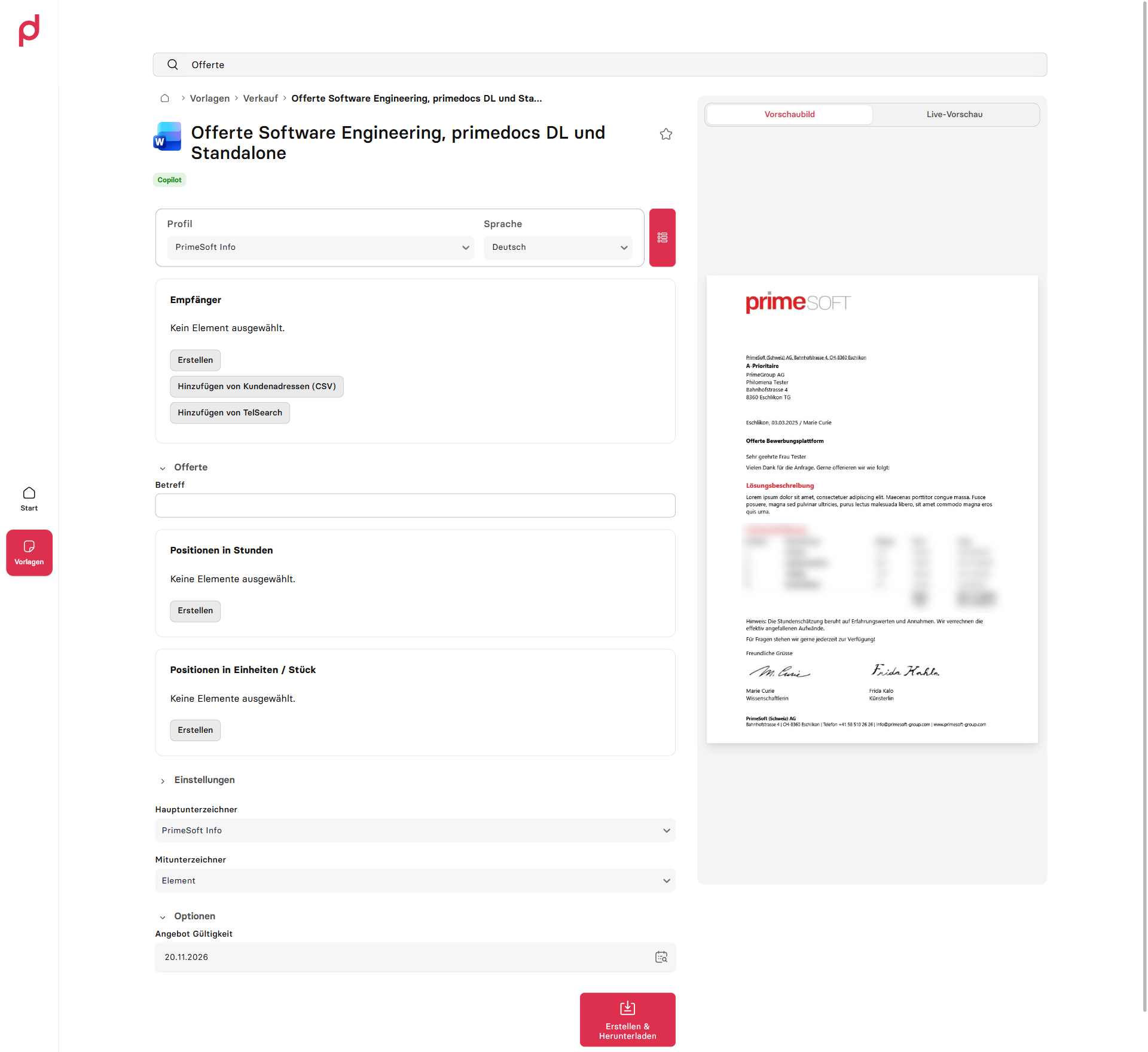
Form with named groups, with the «Einstellungen» group collapsed.
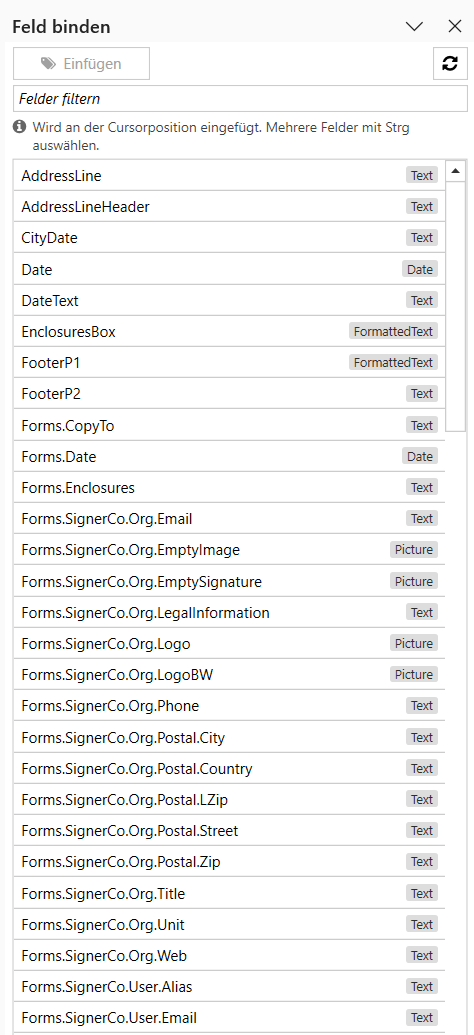
In Word, Bind field now opens a side pane that stays open while you work on the template. It follows the cursor position, filters by name and type, and inserts several fields at once. Documentation.
Start templates from HTTPS links
Template launch links can now be stored as ordinary HTTPS links, for example in SharePoint or on an intranet where only http and https are accepted as link targets. The link opens a primedocs page that hands the command over to the installed desktop client. Documentation.
All changes
Web Admin
New
- Administration in the browser. Onboard and edit users, assign groups and roles, and maintain organizational units with hierarchy, field values and permissions. Lists can be searched, filtered, sorted and exported as CSV or Excel. The sections a person sees depend on their roles. The support sign-in only appears when access for external administrators is configured. Documentation.
- Clear navigation. The Organization area is divided into People (users, groups, permissions, user fields), Organizational units and Profiles, and the Integrations area into User data and Interfaces. In primedocs Web, the «Web Admin» menu entry leads directly to administration. Documentation.
- Global search. The search (
Ctrl+K) finds users, groups, organizational units on all levels, profile roles and user and organization fields by name, technical ID and translations, and opens the hit directly in its detail view. Only what the person's roles allow is offered. Documentation. - Roles and their origin per user. The «Permissions» tab shows a user's roles together with their origin. ID and primary SID are available for copying under «Identity». Documentation.
- Group rules with syntax checking. Rules of dynamic app groups are checked in the code editor as you type. Syntax errors are marked with line and column and block saving. If a group has been changed in the meantime, applying the rule does not overwrite it. Documentation.
- Permissions for deleting and changing. Only people who hold every role of the affected account themselves can delete users and groups or change app groups. The last system administrator cannot be deleted. Simultaneous changes to the same record are detected and reported. Documentation.
- Reset inheritance selectively. Own values and images of organizational units, users and profiles can be reset per field with «Restore inheritance» or «Inherit from default language». User images can be uploaded, replaced and removed. Documentation.
- Colour and font themes for organizational units. Themes are maintained on their own tabs and can be inherited from the parent unit. Documentation.
- Manage roles for additional profiles. The roles that templates use to preselect an additional profile can be created and maintained in the Web Admin. Documentation.
- Configure user synchronization visually. An editor guides you through the connection to the directory. The status of the synchronized data is shown per user. Stored Active Directory passwords are only reused for the same domain, search root and user, and are stored encrypted when a symmetric key is in place. Documentation.
- Datasource settings. General settings, languages, security, synchronization, the Office ribbon and the settings for Outlook (Classic) can be edited in the browser. Documentation.
- Transfer packages between environments. Templates, snippets, configurations and other content can be exported as a package and imported into another datasource, for example from test to production. The import checks the package, shows a change plan and logs every run. Documentation.
- Export / Import as its own area. Package export and import has its own entry in the main navigation with the pages Overview, Export, Import, Package store and History. Profile roles can be exported and imported as well, and templates can be selected by their tags in the export. Documentation.
- Manage fields of users and organizational units. Fields can be created, edited, deactivated and deleted in the Web Admin. The layout matches the form in the client and is changed by drag & drop, with a live preview of the new position. User fields can be linked to a claim of the user sync. User fields and organization fields each have their own menu entry and are reserved for system administrators. Documentation.
- Define the display name of users. The name under which users appear in search, shares and documents comes from a directory attribute or from a rule that composes several attributes with fallback values, as building blocks or in JavaScript. A live preview shows the result for a user from the directory. Documentation.
- Directory switch without new accounts. A wizard links existing users and groups to their new SID after a directory switch, for example from Active Directory to Entra ID. Profiles, roles and fields are kept. The preview shows duplicate accounts as a conflict with a suggestion. Documentation.
- Analyse usage. Key figures on document creation, an overview of the client versions in use and template usage statistics across all template versions, with names in the interface language. Documentation.
Web app
New
- Redesigned interface. Start page with favourites and recently used templates, template overview as a list, grid or table with filters and a consistent search, and a shared side panel for settings, profiles, integrations and tenants. Errors are reported visibly. The interface is available in German, English, French and Italian. Documentation.
- Signed-in account per integration. For each connected service, the web app shows which external account is or was last signed in (see Important notices). Documentation.
Improved
- Protect changed input. The form dialog in the web app and in the desktop client asks for confirmation before closing if changed input would be discarded.
- Form header and controls reworked. The form header, dropdowns and buttons have been improved based on feedback from daily use.
Fixed
- No empty row when choosing signers. Selection fields for main signer and co-signer no longer show an additional empty row.
- Feedback for empty searches. Searches in form data sources show «No results found» again when nothing matches.
- Profile switch with additional profiles. When the profile is switched in the form, fields for additional profiles are reloaded and show the defaults of the selected profile.
- Profile switch also applies empty values. Fields follow the new profile even when it specifies an empty value or «No». Fields changed manually stay as they are.
- Display name of code data sources. The «Add from …» button and the search dialog show the translated name (
translate-DisplayName) of a code data source. Documentation.
Office add-ins
New
- Create and edit snippets in the Outlook web add-in. Snippets can be created, edited, moved and deleted directly in the add-in. The visual editor supports formatting, links and images. Language versions and permissions for users and groups are maintained per snippet. Documentation.
- Automatic signature without prior sign-in. In Outlook (new), Outlook on the web and Outlook for Mac, the automatic signature signs in to primedocs on its own. After an explicit sign-out, no automatic sign-in takes place. Documentation.
Improved
- Clearer navigation in the web add-in. Favourites and recently used templates are pinned as rows at the top. Form groups open from a menu in the form header, and the preview has its own button. Fonts, spacing and the search field are consistent across Outlook, Teams and the Office task panes. Documentation.
- Insert signatures and email templates faster. Profile images and other profile data are loaded only once during generation.
- Overwrite snippets faster. Overwriting a snippet with a Word selection that contains a chart now takes about one second instead of several.
- Recognize snippet types. In the Office add-ins of the desktop client, formatted snippets and plain-text snippets have different icons. The title of the properties dialog shows the language and the name.
- Tag search no longer case-sensitive. The search for tags in the Office add-ins no longer distinguishes between upper and lower case. Documentation.
- Cross-references in Word snippets. Snippets may contain REF and PAGEREF fields with the hyperlink switch that Word sets when inserting a cross-reference. This also allows updated tables of contents to be saved as snippets. Documentation.
- PowerPoint: table of contents layouts in the valid version. The «Table of contents» dialog only offers the published version of each agenda template, or the draft version in edit mode. Documentation.
Fixed
- Attachments in a docked reply window. In Outlook (Classic), files from a docked reply window are attached to the correct message.
- Internal or external signature when replying. In Outlook (Classic), the choice between internal and external signature also works when typing protection is disabled.
- Campaigns in signatures. A campaign follows the mail format of the signature (plain text or HTML) instead of silently missing. Mismatching formats are reported as errors.
- Open documents whose language is no longer configured. The primedocs ribbon remains available and shows the document language as «not configured». This applies to Word, PowerPoint and Excel.
- Edit dynamic snippets in the document. The context menu and properties dialog for dynamic snippets are available again in Word.
- PowerPoint: pictures and picture placeholders on the right layer. After a language or profile change, an empty picture placeholder no longer covers other slide elements. A picture inserted into a content placeholder from the image gallery no longer drops behind the other slide content.
- PowerPoint: update the table of contents. Updating removes the entries of deleted slides and applies changed slide titles without errors.
- PowerPoint: «Send mail» in the document language. The e-mail template and signature follow the primedocs document language of the presentation. Screen readers read out the entries of the dropdowns in the dialog.
- Excel: «Apply design» without crashing. The function no longer fails when primedocs is busy in another Office application at the same time.
- Chart colours for new series. In PowerPoint and Excel, series and data points added later also follow the configured colour sequence.
- Update tables inside tables. WordContent with tables in table cells can be updated repeatedly without losing tables or content controls.
- Update content in header tables. WordContent and FormattedText in a table cell of the header keep their formatting, paragraph spacing and content controls when updated repeatedly.
- Word: no crash when closing with Alt+F4. Word no longer crashes when closed with Alt+F4 and no longer suggests disabling the primedocs add-in afterwards.
- Excel: headers and footers at the length limit. Excel allows 255 characters per header or footer across all three sections. primedocs checks this limit across all sections, inserts fields as long as there is room and lists the fields that were not inserted in a notice. The update no longer fails.
- Excel: SVG pictures in headers and footers. A picture field in the header or footer of an Excel template, such as a logo in SVG format, can be updated in the add-in, including after a profile or language change. The add-in converts the vector graphic to PNG for this, as the server does during generation.
- Word: snippets in headers and footers. FormattedText and WordContent snippets end up in the header or footer instead of the main text, without leftover markers.
- Word: styles of FormattedText snippets. When inserted from the snippet pane, the assigned styles are kept.
- Word: snippets next to tables of contents and fields. Inserting no longer damages adjacent paragraphs and can be undone in one step.
- Word: update locked content controls. Fields in content controls with locked contents can be updated reliably through the properties dialog.
- Word: update fields with Track Changes on. FormattedText and WordContent can also be updated while Track Changes is on, without an error message and without leftover markers. The update itself is not tracked as a change.
- Search is kept after synchronization. A manual or automatic synchronization no longer resets the search term in the template list of the Office add-ins.
- Inline snippets with locked content controls. In Word, content controls and their placeholders are retained when fields are updated, even when an inline snippet contains a locked content control.
Templates and document creation
New
- Structure forms into collapsible groups. Named groups can be collapsed and reached through group navigation.
InitiallyCollapsedstarts a group collapsed, andHideGroupNavigationhides the navigation.GlobalGroupsinserts groups from a global configuration. Documentation. - Bind field as a side pane. In Word, a side pane that stays open replaces the previous dialog. It follows the cursor position, filters by name and type, supports multiple selection and also works in headers and footers. Documentation.
- Placeholder texts for content controls. Content controls in Word get fixed or field-bound placeholder texts. Field-bound texts follow the document language, for example from global translations. The «Define placeholder text» command sets them in the template. An empty placeholder text uses Word's default placeholder. Documentation.
- Custom date formats. When inserting a date content control, you can enter your own format. An example shows the result. Documentation.
- Design mode in the ribbon. Word's design mode can be toggled directly in the primedocs ribbon. Documents from templates saved in design mode keep the correct placeholder texts and no longer open in design mode. Documentation.
- Additional data in email templates. Email templates support the Data document function and use transferred Connect data in the subject, recipients and body, for HTML and plain-text emails. Documentation.
- Dispatch Manager extended. The object collection to distribute can come from Forms, Fields or Data (
SourceObjectCollectionId), optionally with its own summary and a filter. In the dispatch dialog, «Set all» applies a value to all rows. On first opening, all recipients are selected. Documentation. - Optional chaining in field code. JavaScript in fields, global code, mappings and code data sources supports
?.and??, which removes many checks for missing values. Documentation.
Improved
- Templating: buttons follow the selection. Snippet placeholders and hints can only be inserted outside content controls. Inside a content control, the buttons are greyed out instead of aborting after the click. Nothing can be inserted into a hint. «Set Tracked» also works with nested content controls and in headers and footers. The preview buttons and the developer tools explain their effect in a tooltip. Documentation.
- Link field names with a click. In the Word dialogs «Insert hint», «Define placeholder text» and «Insert content control», the icon in the input box toggles between a linked field and fixed text. Only a text that exactly matches a field name can be linked. In the Forms designer, the same applies to translation keys. Documentation.
- Configuration checks match the runtime. A
Datein Forms is also valid withtranslate-Formatalone, and an emptytranslate-Formatcounts as not set. In the Slide layout document function,AssetFilterandDesignConversionMappingsare optional. Documentation. - Clear error messages in field code. Errors in the JavaScript code of fields name the affected field, the cause and, where possible, how to fix it.
- Series output from the open document. Series output from the desktop client takes over the open Word document including manual changes and only replaces the bound content. It uses the current form values and the current document language. Without objects, it stops with a message (see Important notices).
- Comments in snippets. Word comments in snippets are retained, with anonymized author information.
- PDF via Office only for Word.
PdfViaOfficerejects PowerPoint and Excel templates with a clear message and recommendsPdfinstead. Documentation. - Font size in formatted text in points.
data-office-font-sizeis specified in points, like the font size in the Office UI, with a decimal point for half points. Invalid values are handled as in Word and PowerPoint. Documentation. - Document fields limited to non-sensitive values. The
Documentfield source only provides the document language, template id, localized name and description, and the version information. Login names and internal template details are no longer available. The values are never stored in the document, not even through the Office add-ins. Documentation.
Fixed
- Reliable checks of required input. Required search parameters in form data sources are enforced and reported at the field. Required objects are checked before the dialog is closed for the first time.
- Stable series output. Binding table rows again no longer causes a crash, and long generations continue without timing out.
- Dispatch Manager: copies stay independent. A recipient row created with «Insert copy» keeps its own dispatch type and target, also after saving and reopening the dialog. The original stays unchanged. «Reset» restores the values from the form. For documents in which the original and the copy showed the same dispatch type so far, set the dispatch type of the original once more. Both rows then stay separate. Documentation.
- Keyboard shortcuts of styles. Keyboard shortcuts defined in Word, including two-step shortcuts, are retained during document creation.
- Additional profiles in forms.
Hidden,ReadOnlyandOnlyVisibleDuringGenerationnow also work forAdditionalProfile, and these fields can be used inElementsIfYes,ElementsIfNoandElementsIfValue. - Font size in formatted text. A font size set on a paragraph also applies to the text of that paragraph.
- Spaces between placeholders. The space before text between two placeholders is retained.
- Headers and footers after a layout change. Outdated headers and footers no longer prevent document creation.
- Series output with the complete object collection. Each document in the series has access to the whole object collection, for example for a distribution list. The current series object is selected through the
SelectedObjectId. Documentation. - Pictures from image galleries in server-side generation. Picture fields that refer to a picture in an image gallery are filled correctly when documents are generated on the server, for example from the web app and the Office web add-ins.
- No unnecessary style warnings. The default style template defines the styles that Word creates automatically. No warnings about them appear any more when testing and editing documents.
- Classic Word templates with comments and subtemplates. Templates with comments, footnotes or endnotes and subtemplates no longer hang during generation.
- Quick Check fields for date and checkbox in snippets. WordContent snippets accept tracked content controls for date and checkbox. Documentation.
- East Asian document languages in Word. For Chinese, Japanese and Korean, primedocs sets the document language as the language for East Asian text, and the other language settings of the template are kept. Documentation.
- AutoText from snippets with section breaks. Snippets with section breaks and headers or footers no longer produce corrupted Word documents when used as AutoText. Section breaks become normal paragraphs in the AutoText.
Administration
Improved
- More complete usage log. Documents generated on the server from the web app, the Office web add-ins and the Web API log the template name and organizational unit, like the desktop client.
Fixed
- More reliable package import and export. An organizational unit whose SID is already in use is skipped with a message instead of aborting the import. Unchanged objects are no longer written. The export offers all document languages and no longer fails when the published version of a template has been deleted. Uploading large packages is more robust. Imported permissions and translations of existing organizational units, snippets and snippet groups are synchronized to the clients.
- Chinese and other Windows languages. Chinese (Simplified, China, LCID 2052) and other Windows languages can be added as languages in the DataSourceAdminApp, in the Web Admin and through the Admin API. Connect files with these language codes are recognized. Documentation.
- Tags without colour. The template editor of the DataSourceAdminApp also opens templates with tags that have no colour.
- Field IDs with spaces. Field IDs containing spaces are rejected, and leading and trailing spaces are removed.
- Inheritance of colour and font themes. Inheritance falls back to the theme of the parent organizational unit again.
- Proposed organizational unit. The user view reliably shows the proposed organizational unit and points out inconsistent data.
- DACPAC export. The export creates its target directory when needed.
- Access protection for database exports. Database exports in the DataSourceAdminApp consistently require sign-in.
- Usage log. The
PrivacyLogUserDatasetting is recognized regardless of case. Entries from the desktop client carry their timestamp in UTC, like the entries generated on the server. Documentation.
Integration and interfaces
New
- Start templates from HTTPS links. An HTTPS link to primedocs hands the command over to the installed desktop client. Documentation.
- Admin API extended. New endpoints for package export and import, roles for additional profiles, themes and translations, datasource settings, usage statistics and the search across users, groups, organizational units, profile roles and fields (
Admin/Search). Documentation. - LDAP data sources with anonymous sign-in. The
LdapDataProviderselects the bind method through the newAuthenticationTypeelement (Basic,Negotiate,Anonymous). Public directories can thus be queried without credentials, for example when replacing classic LDAP address providers. Without the element, nothing changes. Documentation.
Improved
- Connect API returns only usable templates. The template list only contains templates that can be used via Connect. Pages and hit counts are consistent.
- Consistent SID when creating objects via the Admin API. Users and groups are created with the
primarySidparameter.sidis still accepted. If both are missing, the API responds with HTTP 400. - MCP tools annotated. The MCP server marks its tools as non-destructive and provides an icon for AI assistants. Documentation.
- Connect error codes for template selection. If a Connect finds no template or several templates, the error code names the reason:
Connect.NoMatchingTemplate,Connect.MoreThanOneMatchingTemplateorConnect.NoTemplateSpecifiedreplace the previous combined code. The server and the desktop client report the same codes. Documentation. - Unsupported document language reported clearly. If a Connect refers directly to a template that does not offer the requested document language, primedocs reports «Document Language Not Supported» with a hint on how to fix it instead of a generic error.
- InvokeUrl allow list checked more precisely. An allowed address with a host only applies to the same scheme, host and port and to the given path and everything below it. An empty entry allows no URL (see Important notices). Documentation.
- Admin API with consistent conflicts and timestamps. If someone changes a record at the same time, the API responds with HTTP 409 and the code
ConcurrentModification. Timestamps are returned in UTC. Fields for colour and font themes do not appear in detail responses, only through the theme endpoints. Documentation. - Updating via Connect always merges values. When an existing document is updated, the supplied values are applied and the other form values stored in the document are retained. Documentation.
Fixed
- HTTP 401 without sign-in. Requests to protected Web API endpoints without valid sign-in receive HTTP 401 instead of 500.
- Open web-enabled templates from Connect files. When started from a Connect file, web-enabled templates open as documents (
.docx,.xlsx,.pptx) instead of as a corrupted template file. - No series output in Connect documents. For documents created or updated via Connect, the button for the default series output is hidden.
- Example scripts for the APIs. The PowerShell examples shipped for the Admin and Connect APIs encode query values correctly.
- Updating data by other people. Documents from new templates can be updated via Connect by people who do not have the creator's profile, for example when adding data from a records management system. The sender remains that of the document, and stored signers are retained. Documentation.
- Additional profiles via the Connect API. Templates with fields for additional profiles (
AdditionalProfile) can be generated through the Connect API, the Admin API and background jobs. The signers are resolved from the main profile, and a value supplied via Connect is applied. - More robust SCIM and connected services. Invalid requests to create users via SCIM receive HTTP 400 instead of 500. Token responses from identity providers that return
expires_inas a string are accepted. - More robust Excel and CSV lists. Duplicate or empty column headers no longer cause an error, a file that is open in Excel can be read, and an empty worksheet is reported. In the web app, the default worksheet selection applies reliably. Documentation.
- MIP sign-in. «Try again» in the label selection checks both sign-ins and only offers labels with rights protection once
_System.MIP.Protectionis signed in as well. If this service is not set up, primedocs behaves as without rights protection: labels without protection can be applied in the desktop client, the web app and in server-side generation, and protected labels are hidden. A client secret that cannot be decrypted is reported at sign-in with the cause and the fix. Documentation. - Missing values in LDAP and SQL data sources. If an entry lacks an attribute or a column is
NULL, the field stays empty instead of the search failing with a mapping error. Documentation.
Desktop client
New
- Share profiles with write access. The sharing dialog offers the option to let others edit the profile. Permissions are checked on the server. Deleting, sharing and the default profile remain reserved for the owner and administrators. Documentation.
- Edit object schemas visually. The Fields and Forms editors edit the schema of
ObjectandObjectCollectionacross all levels. Documentation. - Fields editor extended. Fields can be reordered, duplicated and converted to another type with
Ctrl+R. Each field type comes with a code skeleton, and JavaScript syntax errors are marked in the code editor. Date fields are also valid without a format, andFormatandtranslate-Formatare mutually exclusive. Documentation. - Design campaigns visually. The Outlook campaign editor offers a visual editor with images and links. Large images are scaled down automatically when inserted. Documentation.
Improved
- Form dialog from the desktop client. The form dialog for Word, Excel and PowerPoint and the dialog of the Dispatch Manager open from the desktop client as a window of the respective Office application. If the connection is lost, the document remains unchanged (see Important notices).
- Test configurations completely. «Test configuration» fully resolves global form configurations and global code and reports circular references as errors.
- Template editor loads faster. Autocompletion for global configurations and translations is ready considerably faster in large datasources.
Fixed
- No accidental loss of changes. The confirmation when closing the dialog for global document functions appears again. The unsaved-changes marker is also correct after undo and redo.
- Autocompletion in the XML editor. Attributes and types in global configurations are suggested completely. Newly saved keys of global configurations and translations are available without restarting. Fields are suggested consistently with their full path.
- Input fields with suggestions. Characters such as
_,+and-can be typed according to the keyboard layout again, for example in the «Define placeholder text» dialog, in the Fields editor and in the Forms editor. Checkbox labels in the Forms editor no longer toggle while typing. - SVG, WMF and EMF in the asset dialog. The image filter of the asset dialog offers these formats in the German interface as well.
- Check choice labels immediately. Empty labels of choice options are marked immediately in the Forms editor.
- XML comments stay in place. The Fields editor no longer moves comments before global fields to the top of the list.
- Dialogs at high text scaling. The dialogs for document parameters, recipients and document creation show «OK» and «Cancel» in full, even at 200 % text size and on scaled displays.
- Template editor for classic templates. The checkboxes below the document functions editor no longer overlap.
- More stable template editor. The template editor no longer crashes when opening dependencies and base templates. The «Versioning» tab also opens when a version has an earlier creation date than its predecessor.
- Synchronization after changes to theme colours and user pictures. After theme colours are saved or a user picture is deleted, the next synchronization no longer fails. User and profile management recognizes entries deleted in the meantime, and the search forms of individual address providers handle checkboxes, date and number values correctly again.
- Consistent language after a reset. When the cache or the datasource is reset, the selected UI, document and e-mail languages are kept, and the interface no longer appears in mixed languages.
- Origin in the field tooltip. In user and profile management, the tooltip of an inherited field names the correct origin, also after saving.
- Add-ins disabled by Office in the diagnostics. The overview of installed add-ins under «Help» no longer shows add-ins disabled by Office as loaded. This now also applies to Microsoft 365 and Office 2016 and later.
- Invalid theme XML. The «Colour theme» and «Fonts» dialogs of an organizational unit reject empty or incomplete XML and duplicate theme ids with a message instead of closing the client. A stored configuration without a default theme no longer stops document creation. Documentation.
Operations and installation
New
- Apply database migrations automatically. With
autoApplyDbMigrationsinprimedocs.config, primedocs applies pending migrations automatically at startup. The one-time switch of older database versions remains a manual step. Documentation.
Fixed
- Desktop update without long waits. Setup lists the applications that block the update and lets you close them. Office is shut down and restarted in an orderly way. If a restart of the computer is required, setup says so.
- Deploy add-in manifests. The manifests for the Office and Outlook web add-ins can be deployed through the Microsoft 365 admin center again (see Important notices).
- Health check of user synchronization. Error count and warning threshold are calculated consistently, also in small environments.
- Claim mappings of user synchronization. Mappings can only be selected for field types that synchronization can fill. Unsupported mappings are logged.
- Usage log with long user names. Long display names no longer cause an error when writing the usage log.
- Simultaneous requests after sign-in. Several simultaneous requests from the same person no longer fail sporadically with a server error.
- Sign-in licence updated. The default licence key of the identity server shipped with primedocs has been renewed.
Important notices
The form dialog now opens from the desktop client. The desktop client and its Office add-ins must therefore come from the same version. Mixed versions after a partial update are not supported.
The server applications of primedocs 4.1 are based on .NET 10. Install the .NET 10 Windows Hosting Bundle before updating. Details: Updating the primedocs server and Feature Release 4.1.10020.0.
The manifests of the Office and Outlook web add-ins get a new version with this release. If the add-ins were deployed through the Microsoft 365 admin center, download the manifest again after the server update and update it there. Documentation.
Existing integrations only show the signed-in account after the configuration has been adjusted (set issuer, include openid profile in scope) and the user has signed in again. Details: Connected services.
Package export and import in the Web Admin require the <importExport> element in primedocs.config. New installations contain it. Update.ps1 does not add it to existing installations, so add the element manually there. Documentation.
An empty entry in the InvokeUrl configuration allows no URL. Entries with a host only apply at host and path boundaries. Check existing configurations before the update and list the required addresses explicitly. Documentation.
The configuration preview in the template editor now reports series output in Excel templates and MergeAsPdf outside Word as errors. Neither combination has ever worked. Existing templates do not break because of this.