PowerPoint ribbon
In a presentation created with primedocs, PowerPoint shows the primedocs tab. This page describes every button and the context menus. The guide is under Presentations with PowerPoint.
Applies to: PowerPoint on Windows with primedocs Desktop (Office COM add-in).

primedocs / Properties / Profile / Language: as in Word.
Data
Slides: inserts a new slide in the chosen slide layout, with a preview per layout.
Images: opens the organisation's image library. The selected slide determines which images are available.
Layout
Check slide: resets a slide to the design of its slide layout (alignment, fonts, colours).
Change layout: switches the slide to another slide layout.
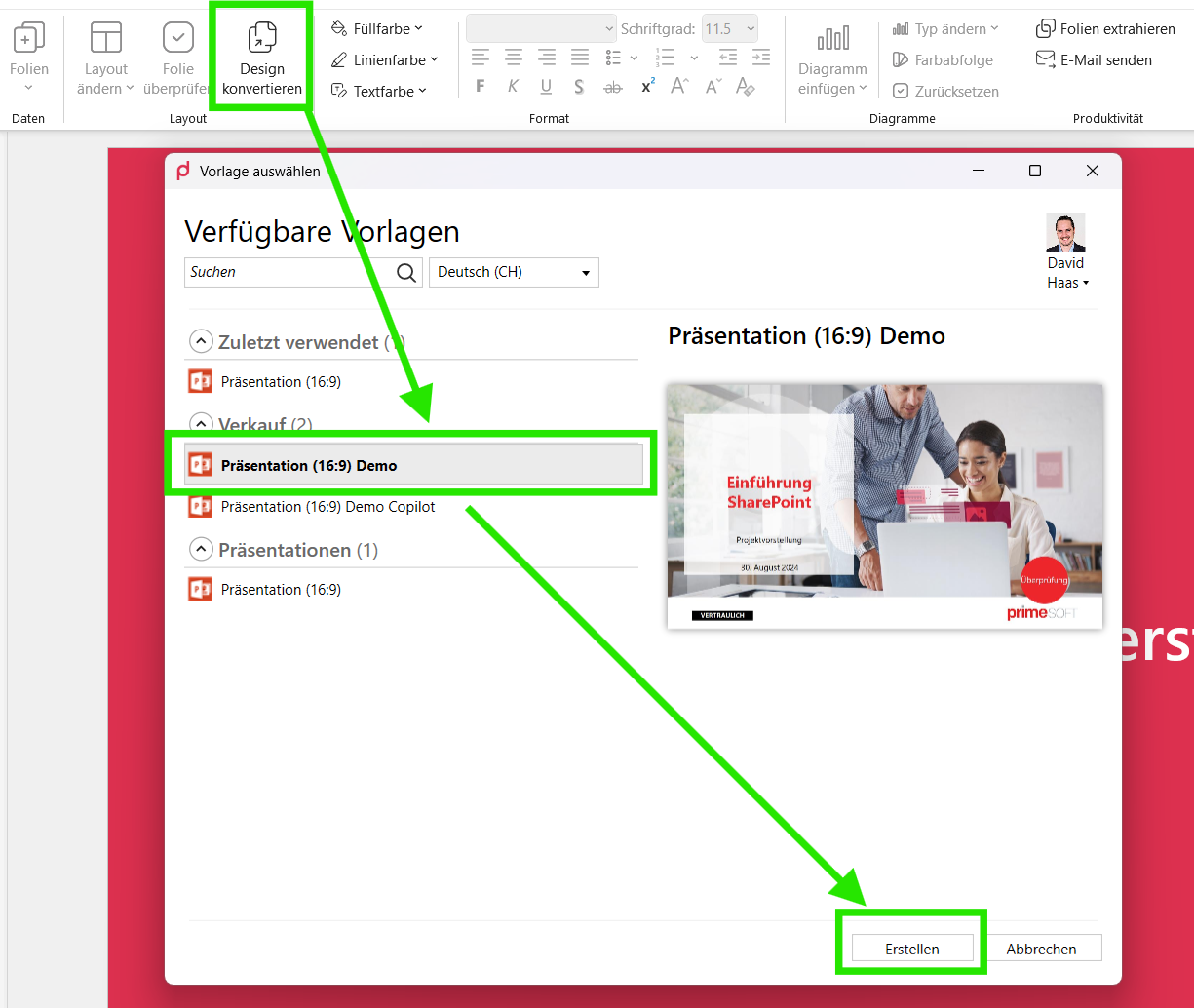
Design Conversion: transfers the content of a foreign presentation into a new presentation in your own design. Choose the target template, Create starts the conversion.
Format
Colour management: fill, line and text colours from the corporate design. Each of the three buttons is only available if the colour theme of the organisational unit defines colours of that kind for PowerPoint and the presentation is not protected. If only a chart is selected, line colour and text colour stay disabled.
Text formatting: the PowerPoint text tools, repeated here so the ribbon need not be switched.
Charts
Insert chart: chart of the chosen type in the organisation's colour scheme.
Change type: switches the chart type.
Colour sequence: rotates the colour order within the corporate design.
Reset: restores the chart's defaults.
Productivity
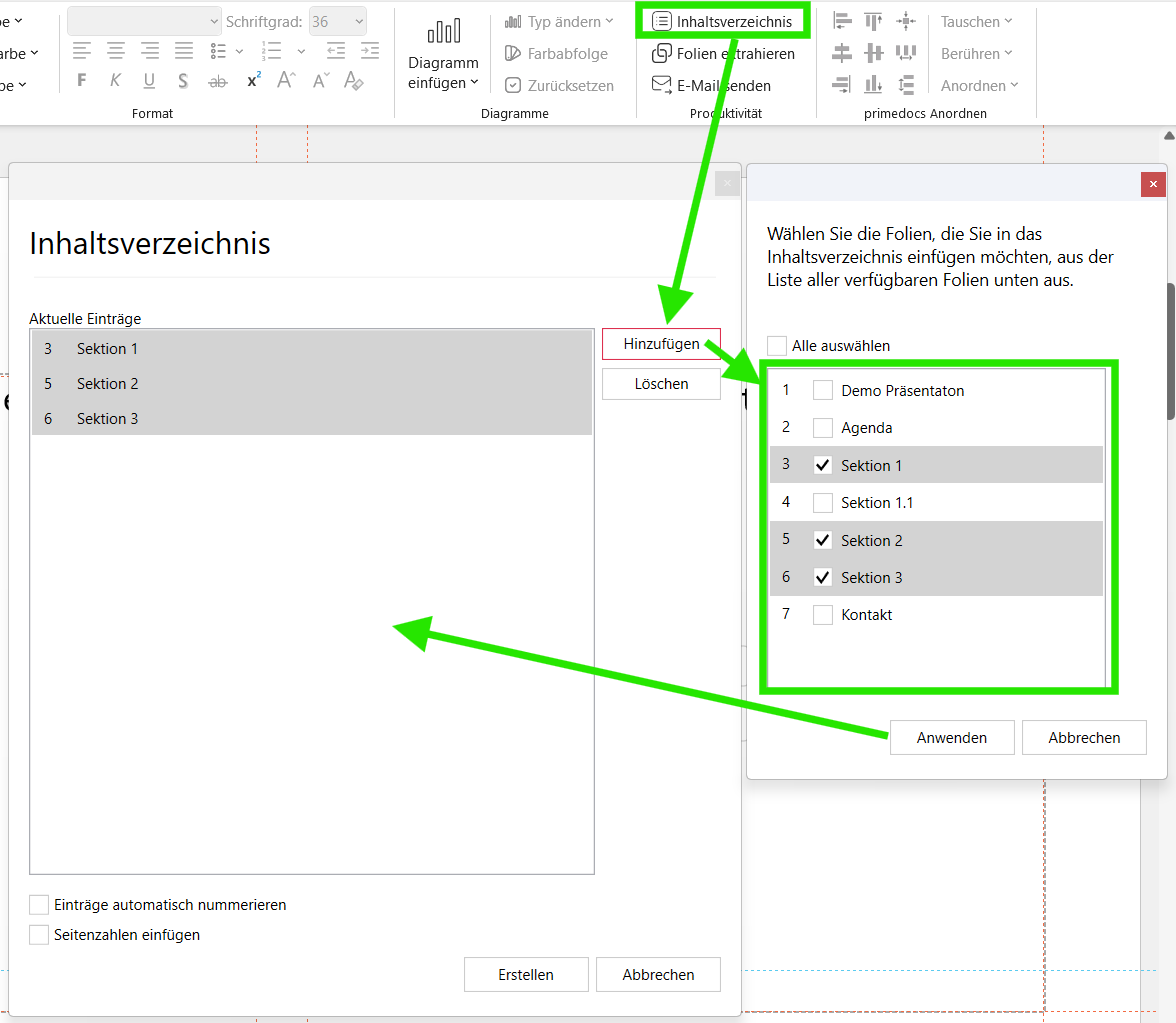
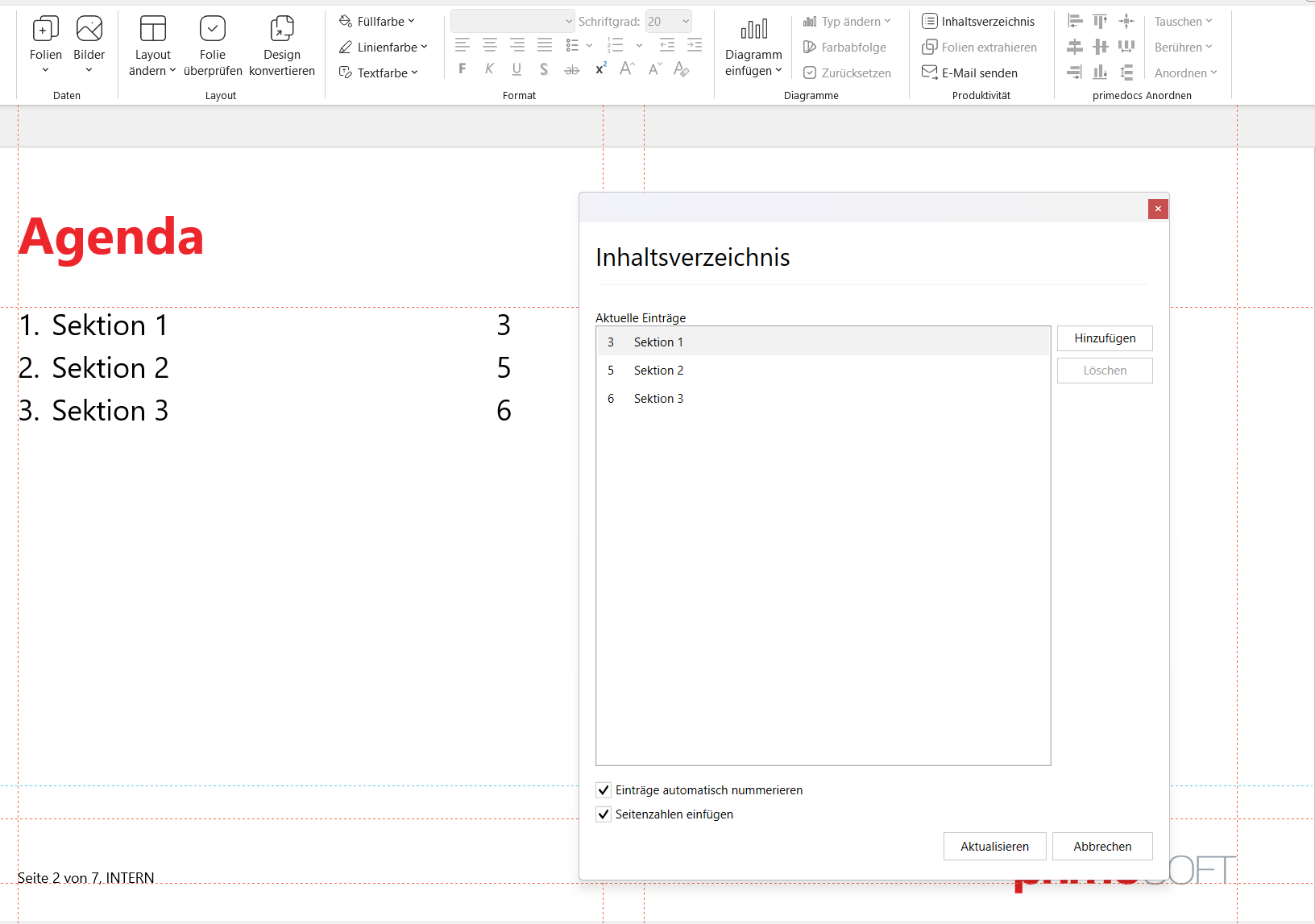
Table of contents: creates an agenda slide with references to slides. In the dialog: Current entries, Add (slide selection on the right, take over with Apply), Delete, Number entries automatically, Insert page numbers, Create or Update. Invalid and duplicate references are reported.
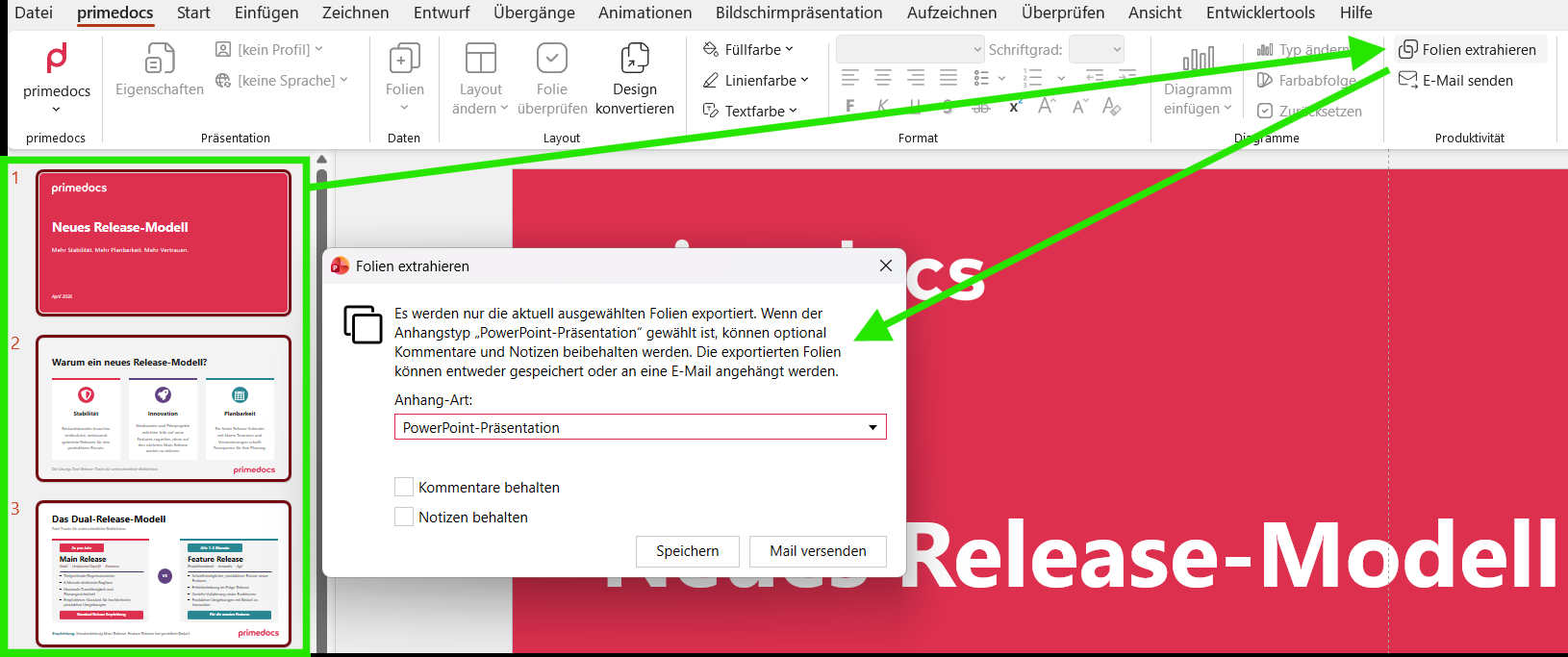
Extract slides: exports the selected slides to a new file. In the dialog: Attachment type (PowerPoint presentation or PDF), Keep comments and Keep notes (PowerPoint only, off by default), Save, Send mail. Formatting, animations and transitions are preserved.
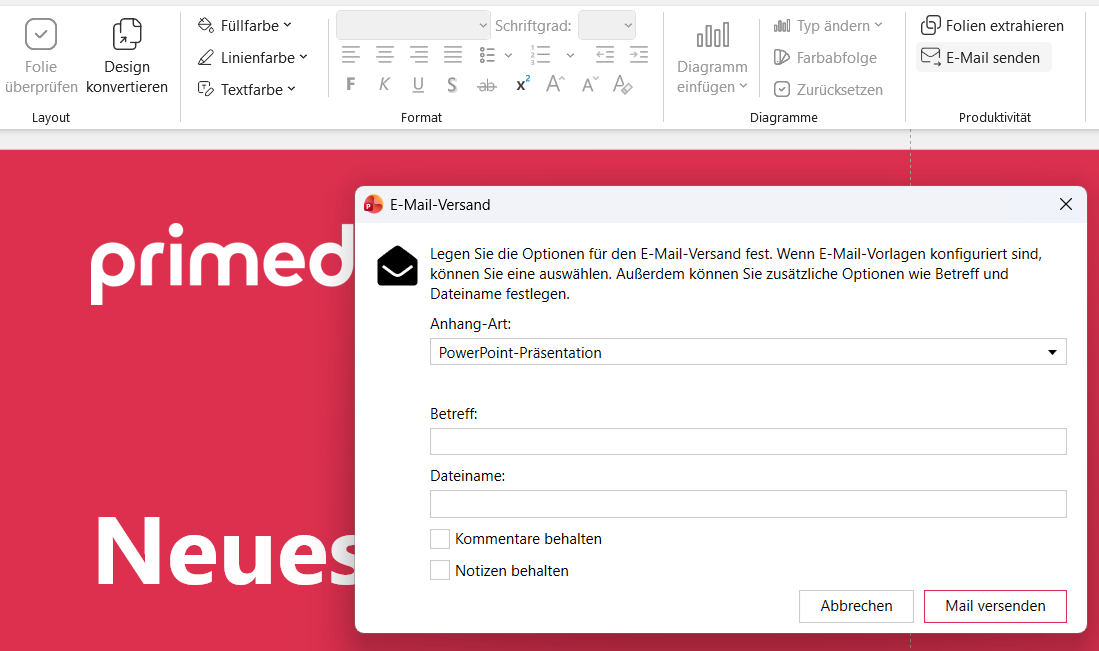
Send mail: creates an e-mail with the presentation as attachment. In the dialog: E-mail template (primedocs template with layout and signature, also "None"), Attachment type, Subject, File name (default "Attachment"), Keep comments, Keep notes. Started from Extract slides, the settings made there apply. A template of type "E-mail (classic)" opens classic Outlook. A template of type "E-mail" produces an .eml file for the program registered in Windows, usually new Outlook. Without a template, the preferred Outlook variant decides.
Output: generates the output according to configuration. Appears only with output management set up (see Output Management).
Context menu: transferring formatting
Right-click a shape or group:
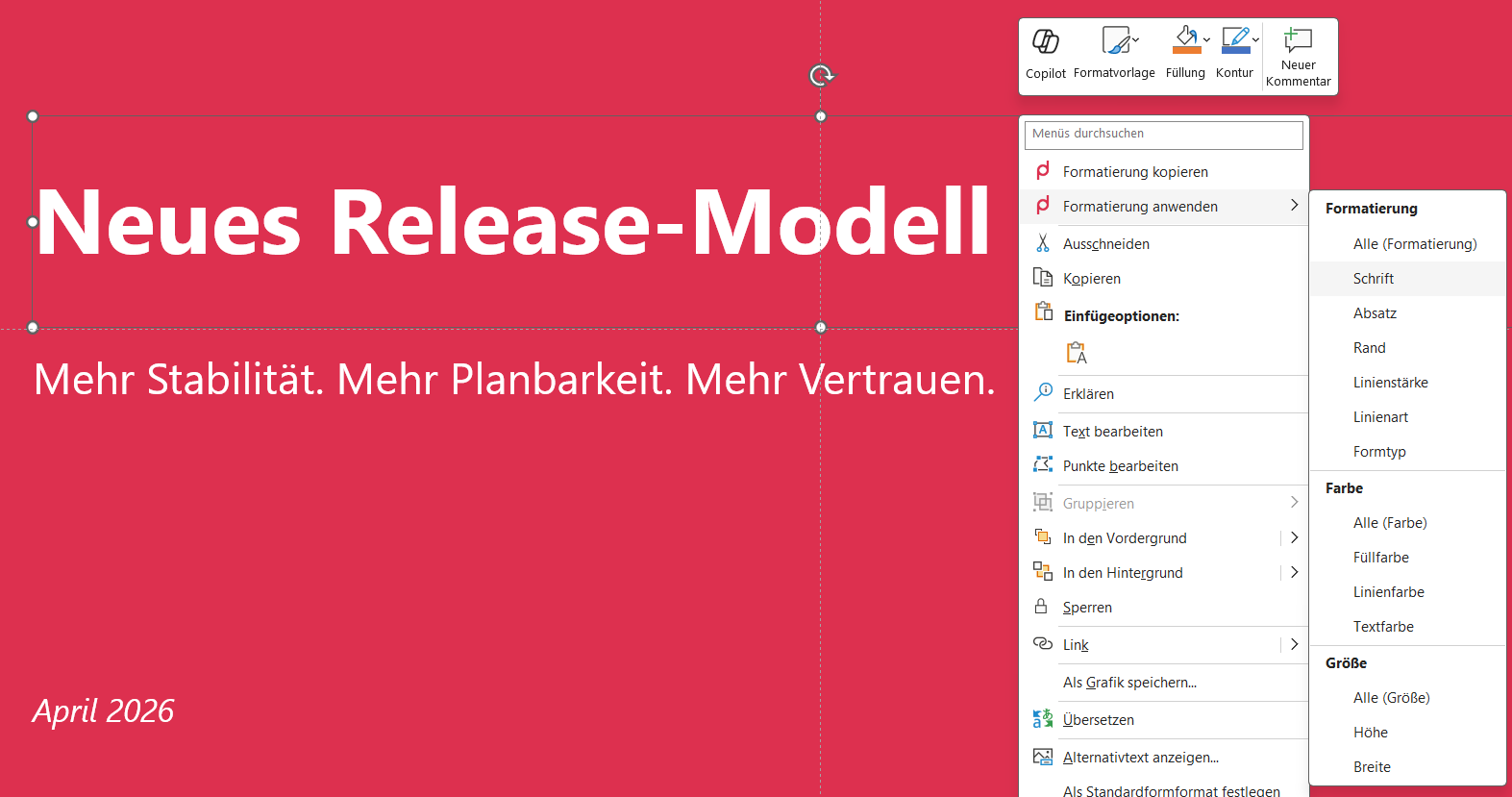
- Copy formatting captures the formatting of the source.
- Apply formatting transfers to the selected targets, individually or All:
- Formatting: font · paragraph · margin · line weight · line style · shape type
- Colour: fill colour · line colour · text colour
- Size: width · height
primedocs Arrange group
One-click positioning for selected objects. The last selected object stays fixed, the others align to it. The buttons are grey while too few objects are selected or the presentation is protected.
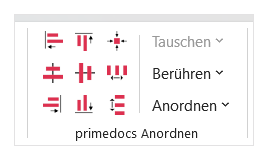
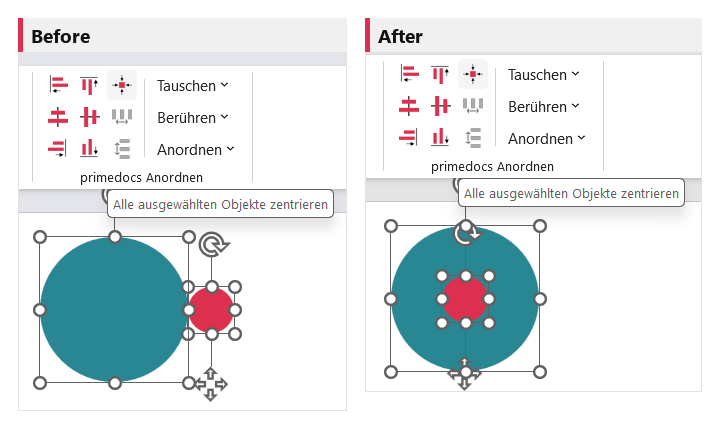
Align (from 2 objects): Arrange left / right / top / bottom to the edge of the reference object, Arrange horizontally / vertically on its axis and Arrange centred on both axes.
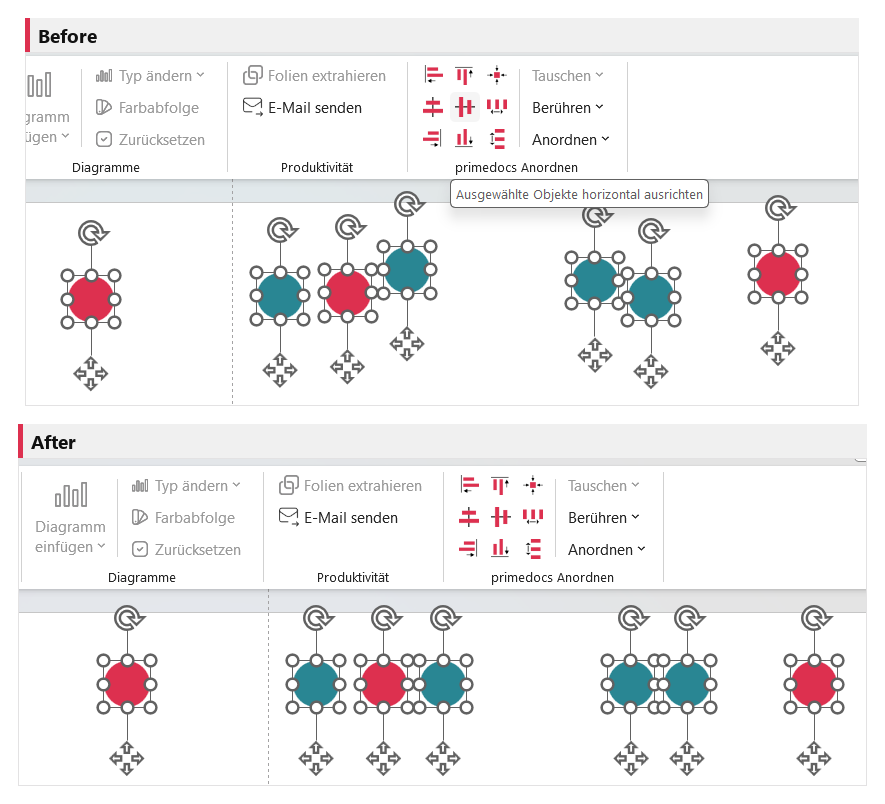
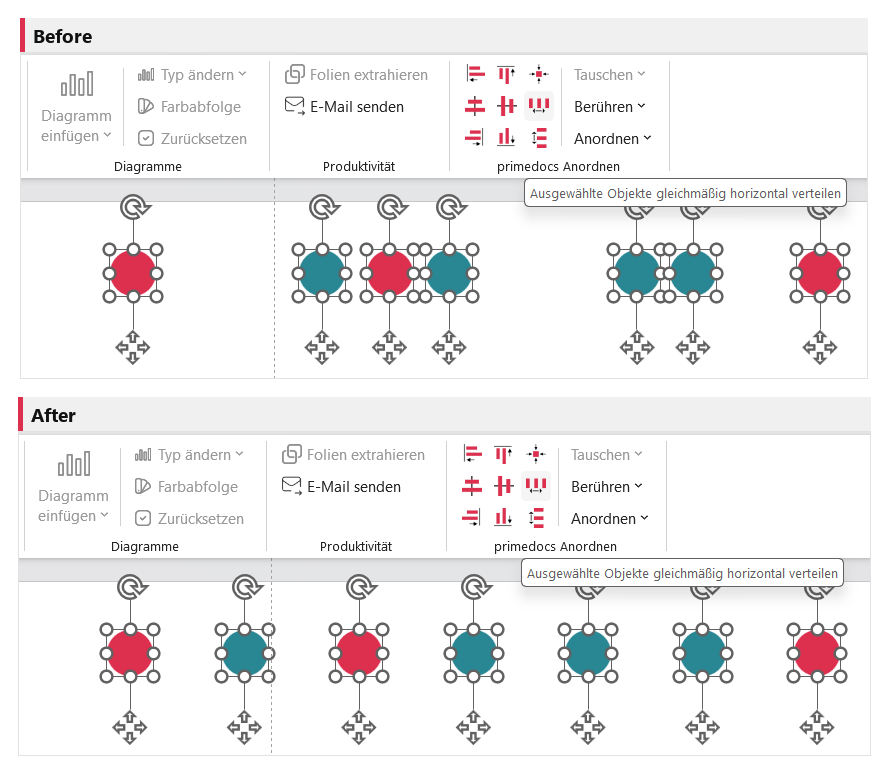
Distribute (from 3 objects): Distribute horizontally / vertically evenly between the outermost objects.
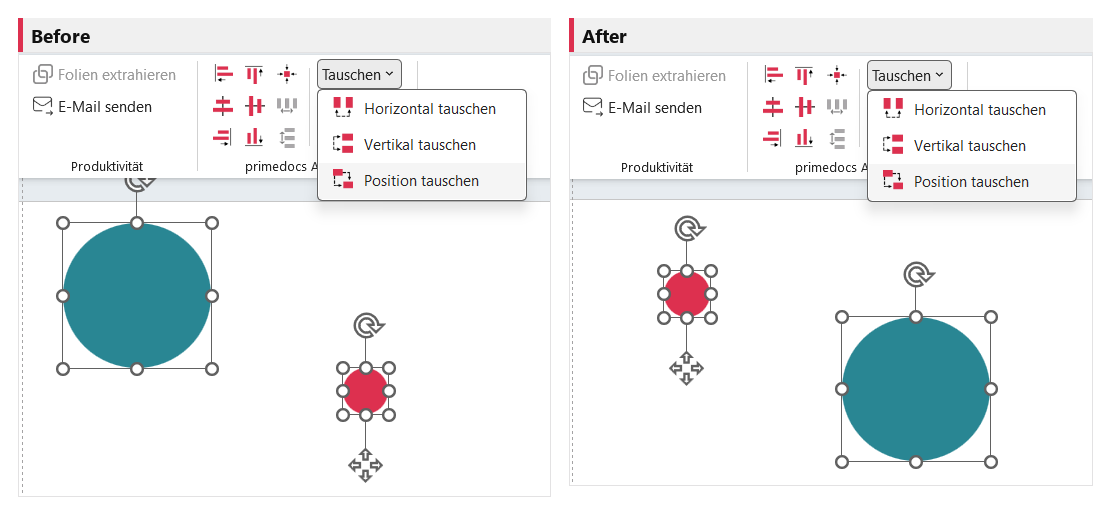
Swap (exactly 2 objects): Swap horizontally / vertically / position.
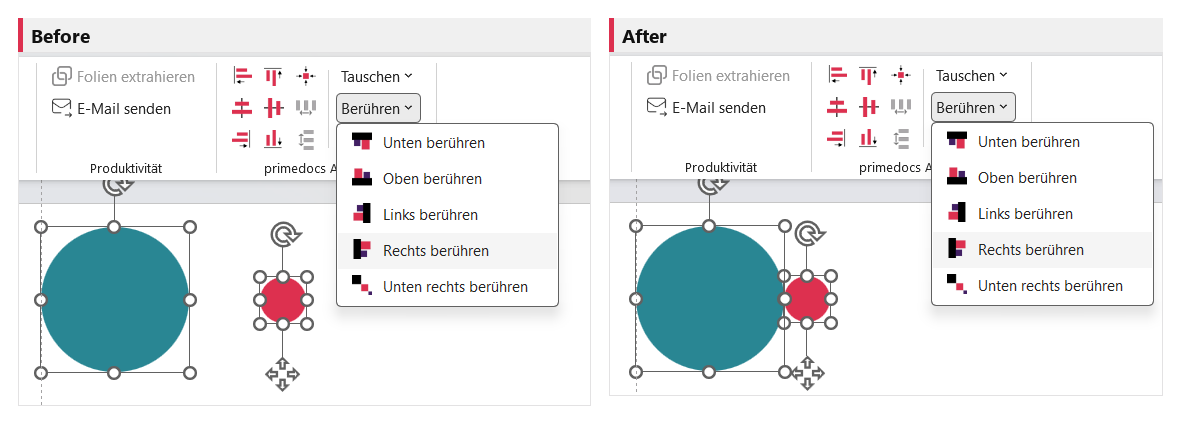
Touch (from 2 objects): Touch bottom / top / left / right pushes the edges flush against the reference object. Touch bottom right staggers diagonally.
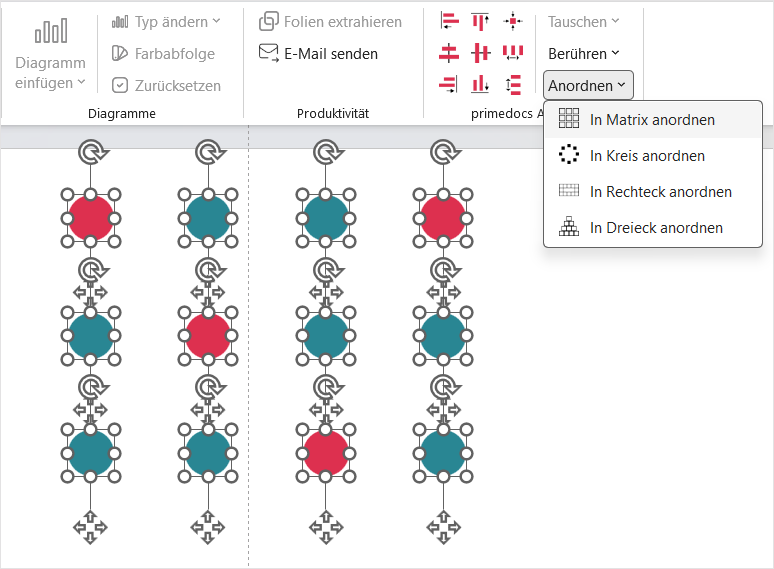
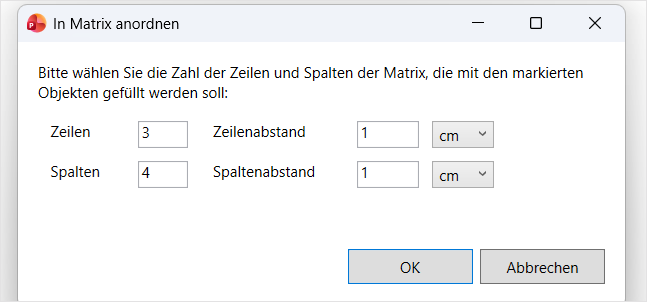
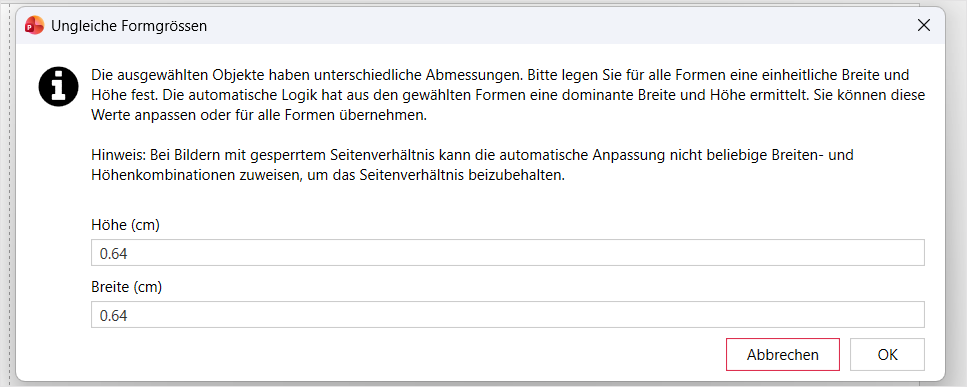
Arrange menu (centred on the slide): Arrange in matrix (dialog for rows, columns, spacing), Arrange in circle (from 4), Arrange in rectangle (from 4), Arrange in triangle (from 3). With unequal sizes a uniform size is proposed.
In a presentation not created with primedocs, many buttons are greyed out. Design Conversion creates a new presentation in your own design and transfers the content.