Users
Organization › Users manages the users of the datasource: maintain field values, create and share profiles, assign groups and roles. The System Administrator or User Administrator role is required. How users, profiles and organizational units relate is described in Users, profiles and organizations.
User list
By default, the list shows user, sync status and last login. «Columns» shows additional columns, for example roles, Primary SID, user data or individual user fields. The quick search searches the columns of the list, field values only when the field column is shown.
After selecting one or more rows, bulk actions are available:
- Assign groups: adds the selected users to static primedocs groups.
- Assign role (System Administrator only): assigns a role to the users directly. Roles are preferably assigned through groups, see Permissions.
- Export: downloads the selected rows as CSV.
- Delete: removes the users together with their profiles irrevocably. If a deleted person signs in again, they are onboarded again. Several users are deleted one after another, a summary lists the successful and failed entries.
Only someone who holds every role of the user, directly or through groups, may delete them. System administrators always may, the basic User role does not count. Nobody can delete the last holder of the System Administrator role.
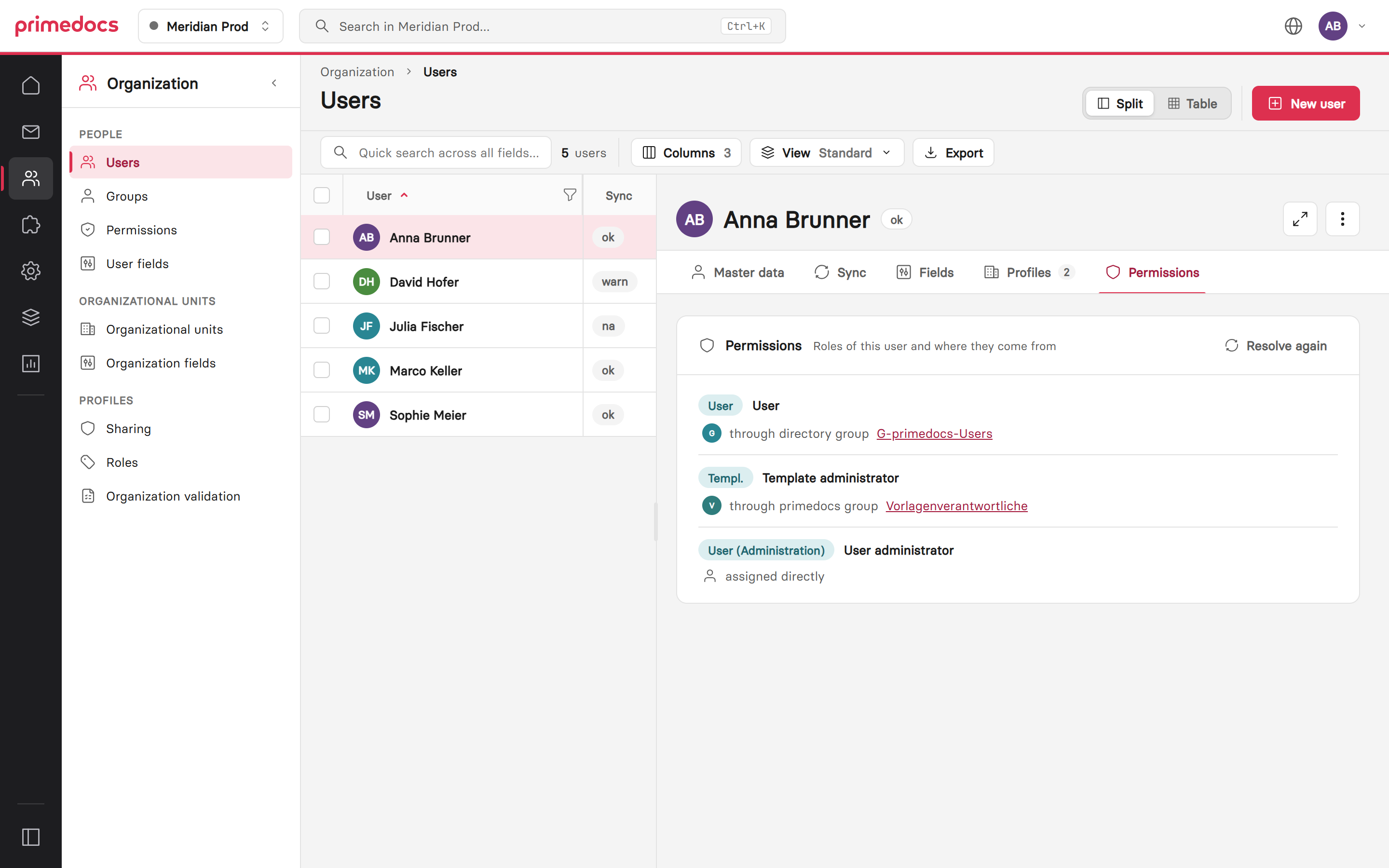
Split view: the list on the left, the selected user on the right in the «Permissions» tab with their roles and where they come from.
Editing a user
| Tab | Content |
|---|---|
| Master data | In the Identity section the user label, the ID and the Primary SID (read-only and copyable), the status of the user data and «Created» and «Last modified». Below, the editable user fields per document language and the user's images. If a value is missing in the selected language, the value of the default document language is shown. An entry is saved in the selected language. Locked fields are read-only. |
| Sync | SID, sync source, sync status and result, time of the last successful run, sync report and status of the automatic deletion. |
| Fields | All field values of the user in one overview, one column per document language, with the origin of the value (from sync, manual, inherited). |
| Profiles | The user's profiles as a list. A selected profile shows title, organizational unit, profile sharing and profile fields for editing. «Edit in the full view» opens the profile across the full width. |
| Permissions | The user's roles and where they come from: assigned directly, through directory group or through primedocs group. The roles are resolved as at sign-in. «Resolve again» queries the directory and the groups again. If the directory cannot be reached, the list shows only direct assignments and primedocs groups. |
The user's display name comes from the directory and is read-only. How it is formed is defined by the display name setting. Which fields exist is managed under User fields. How values are inherited is described in Field inheritance.
Resetting inheritance
In the user's master data and in the profile fields, an own value can be reset per field. The button is in the row of the field name:
- «Inherit from default language»: for a translation where an own value exists in the default document language. Such values are marked «from default language». For users this is the only reset, as they have no parent level.
- «Restore inheritance»: for profile fields without an own value in the default language. Afterwards the value of the user or organizational unit applies again.
A stored value is marked «inherited on save» until saving and is then deleted. While typing, the button only discards the input.
User images are uploaded with «Choose image» and can be replaced and removed. Profiles show inherited images as «inherited». An own profile image is reset with «Restore inheritance».
The User data column shows whether the person has checked and confirmed their own user data in the primedocs client. Until they confirm, the client shows them a corresponding notice. Sign-in, permissions and sync are not affected.
Profiles and profile sharing
A profile is assigned to an organizational unit. The default profile is created during onboarding. It automatically receives an organizational unit if the user's permissions result in exactly one unit. Otherwise it remains without a unit until one is set in the profile. The selection in the profile offers all organizational units of the datasource in hierarchy order. Administrators can assign any unit, including one the profile owner has no permission for. Profile organization validation can reset such an assignment later when it is set to correct. Deleting a profile does not change documents already created with it.
In the Profiles tab, for the selected profile, use «Add share» to select people or groups and set the levels:
| Level | Values |
|---|---|
| Profile share | Not shared, On behalf, With impersonation |
| Signature share | Not shared, Without signature image, With signature image |
| Editing | Read-only, Read & write |
The levels correspond to the sharing that users grant themselves, see Sharing a profile. Rule-based sharing for many profiles at once is configured under Profile sharing. Active rules are applied when a profile is created and can share it automatically.
Creating a new user
Employees are normally onboarded automatically on their first login: primedocs looks up the SID in the directory and creates the user with data, groups and default profile. «New user» offers three ways:
- Onboard employee in advance: search the directory or enter the Primary SID directly and choose «Start onboarding». Data, group memberships and the default profile are taken from the directory as on the first login.
- Technical user: an account without a physical person, for example for background processes or API calls. A display name and a unique Primary SID are required, for example the objectId of the service principal. Technical users are not synchronized, their data is maintained manually.
- Via Admin API: shows the endpoint for onboarding by script.
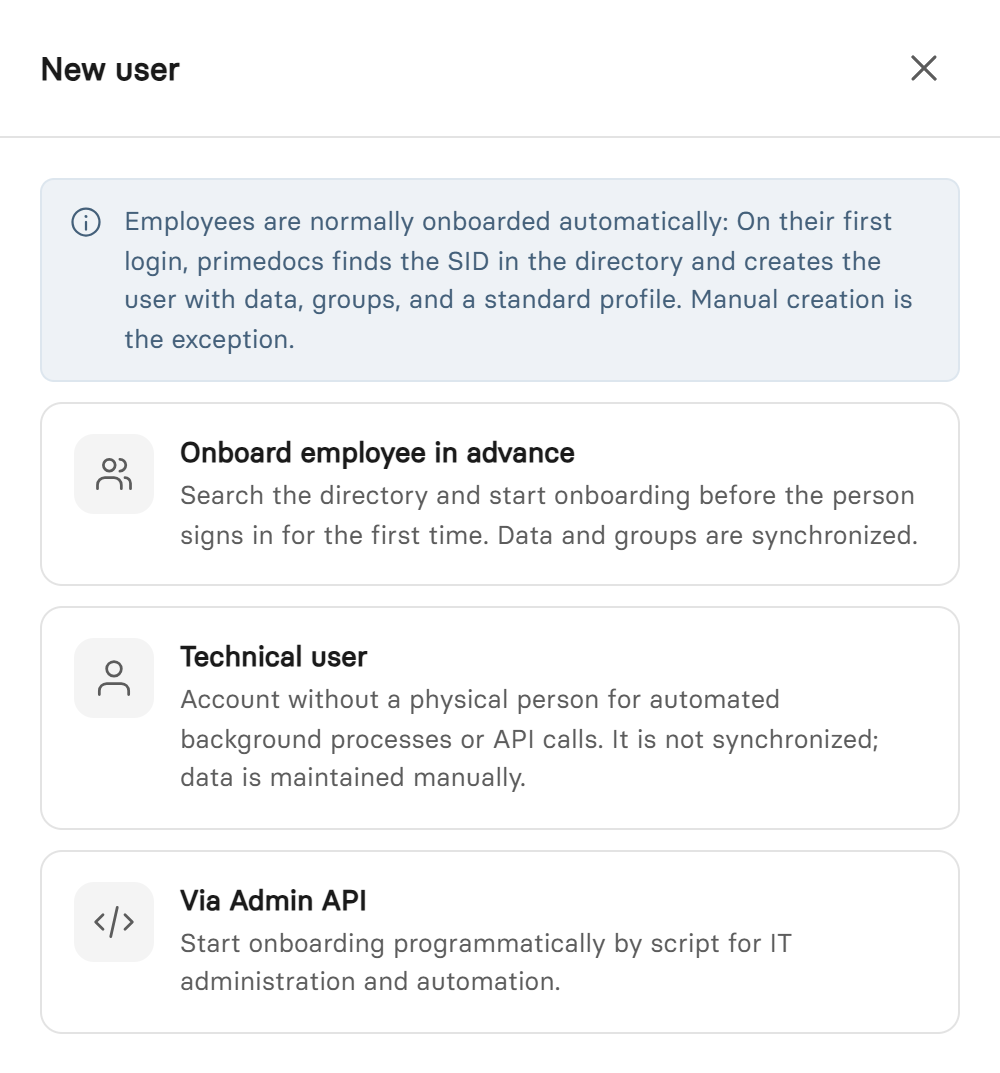
The dialog offers onboarding in advance from the directory, technical users and the Admin API route.