Profiles
Three entries under Organization, section Profiles, control profiles for the whole datasource: Sharing (rule-based profile sharing), Roles (roles for additional profiles) and Organization validation (check whether profiles may still use their organizational unit). The pages are called Profile sharing, Profile roles and Profile organization validation. Individual profiles of a user are edited under Users.
Profile sharing
Profile sharing rules automatically share profiles with a person or group, for example with a secretariat. How the rules work and what they affect is described in Profile sharing policies. The area is visible to system administrators and developers.
- Choose «Add rule».
- Enter a name and optionally a description.
- Under Share with, search for the person or group that gets access.
- Optionally select a group under Condition. Then only profiles of members of this group are shared.
- Set the levels Profile permission, Signature profile permission and Access to the profile. At least one permission is required.
A rule can only be deleted when it is deactivated. Shares already created remain when the rule is deleted.
The bulk actions affect all profiles of the datasource:
- Apply rules: evaluates all active rules against all profiles and creates the missing shares.
- Reset shares: deletes all shares created by rules. Manually granted shares remain.
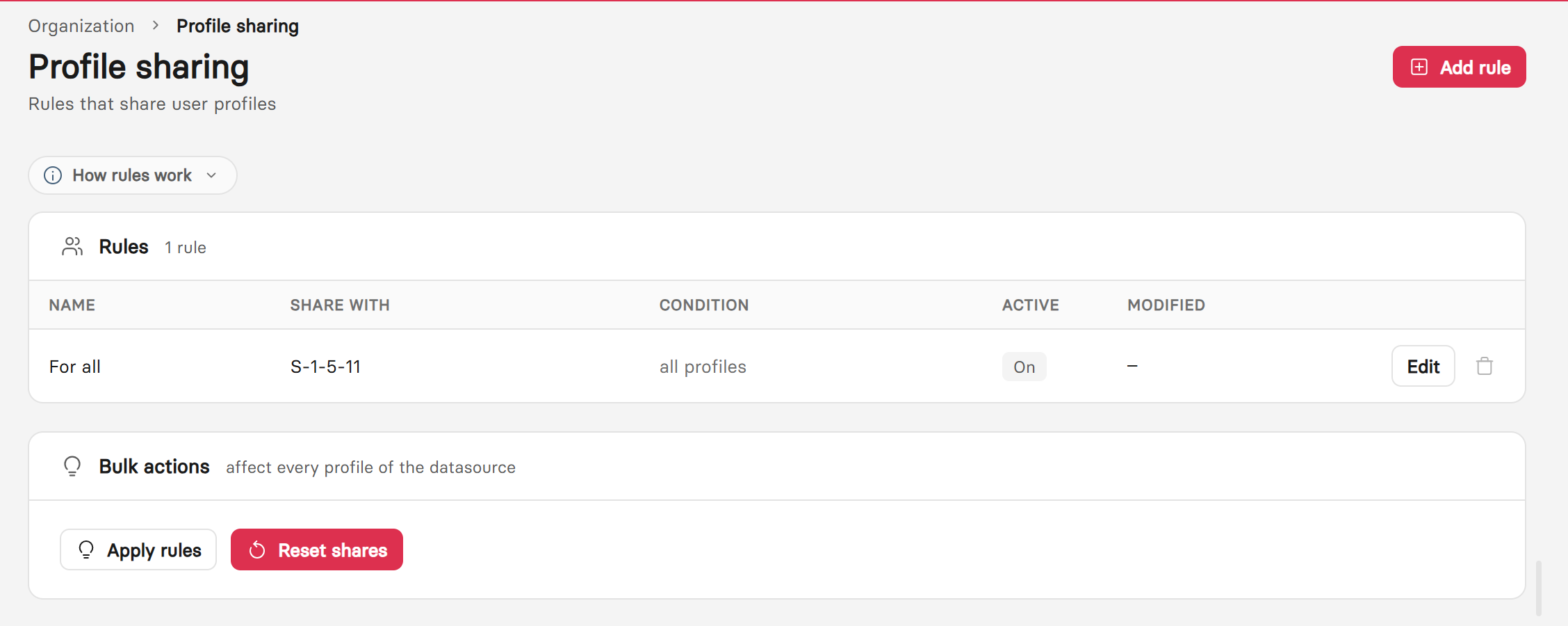
The rule list shows the target, condition and status of each rule. Below it, the bulk actions.
Profile roles
Profile roles are the roles for additional profiles, for example «President» or «Secretary». Users assign them to their additional profiles, templates use them to preselect a signatory. The area is visible to system administrators and organization administrators.
| Property | Meaning |
|---|---|
| Technical name | Used in templates, for example in PreselectByRole, and must be unique. |
| Display names | Name per interface language. If a display name is missing, the client shows one of the other names, if all are missing, the technical name. |
The order of the list can be changed by dragging or with the arrow keys. A deleted role is automatically removed from all profiles. The delete dialog shows beforehand how many profiles it is assigned to.
Profile roles can be transferred to another datasource as part of a package through Export and import. The import matches them by technical name.
Profile organization validation
Each profile is assigned to an organizational unit. Profile organization validation compares this assignment in the background with the permissions of the unit. Whoever still belongs to a permitted group according to the identity provider or is permitted directly keeps the unit. For everyone else, the validation run determines the matching unit again, as during onboarding. Only profiles with an organizational unit are checked. Profiles for which validation is switched off are excluded.
| Mode | Effect |
|---|---|
| Off | No validation. |
| Report only | The newly determined unit is recorded on the profile as a suggestion. |
| Report and correct | The assignment is changed directly. If the new determination does not result in a unique unit, the assignment is removed. |
The page also shows the time of the last validation run. The area is visible to system administrators and developers.