Organizational units
Organization › Organizational Units maintains the organizational structure of the datasource: create and move units, enter field values and logos, set colour and font themes and decide who may use a unit. The System Administrator or Organization Administrator role is required. The effect of organizational units on templates and profiles is described in Managing organizational units.
Editing the structure
Units can be shown as Hierarchy (tree), Split or Table. The Hierarchy graph shows the whole structure graphically and can be searched.
| Action | Effect |
|---|---|
| Create organizational unit | New unit below a selected parent unit or as a top-level unit. Field values are inherited from the parent and can be overridden afterwards. |
| Create sub-organizational unit | New unit directly below the selected unit. |
| Move | Attaches the unit with all its sub-units to a new parent unit. Field inheritance follows the new position. |
| Duplicate | Creates a copy with the unit's own field values below the same parent unit, without images, permissions and sub-units. |
| Delete | Removes the unit. As long as sub-units exist, deleting is blocked. Profiles of the unit lose their organizational unit, the unit's permissions are deleted. If several units are selected and deleted, units with sub-units that are not selected remain. |
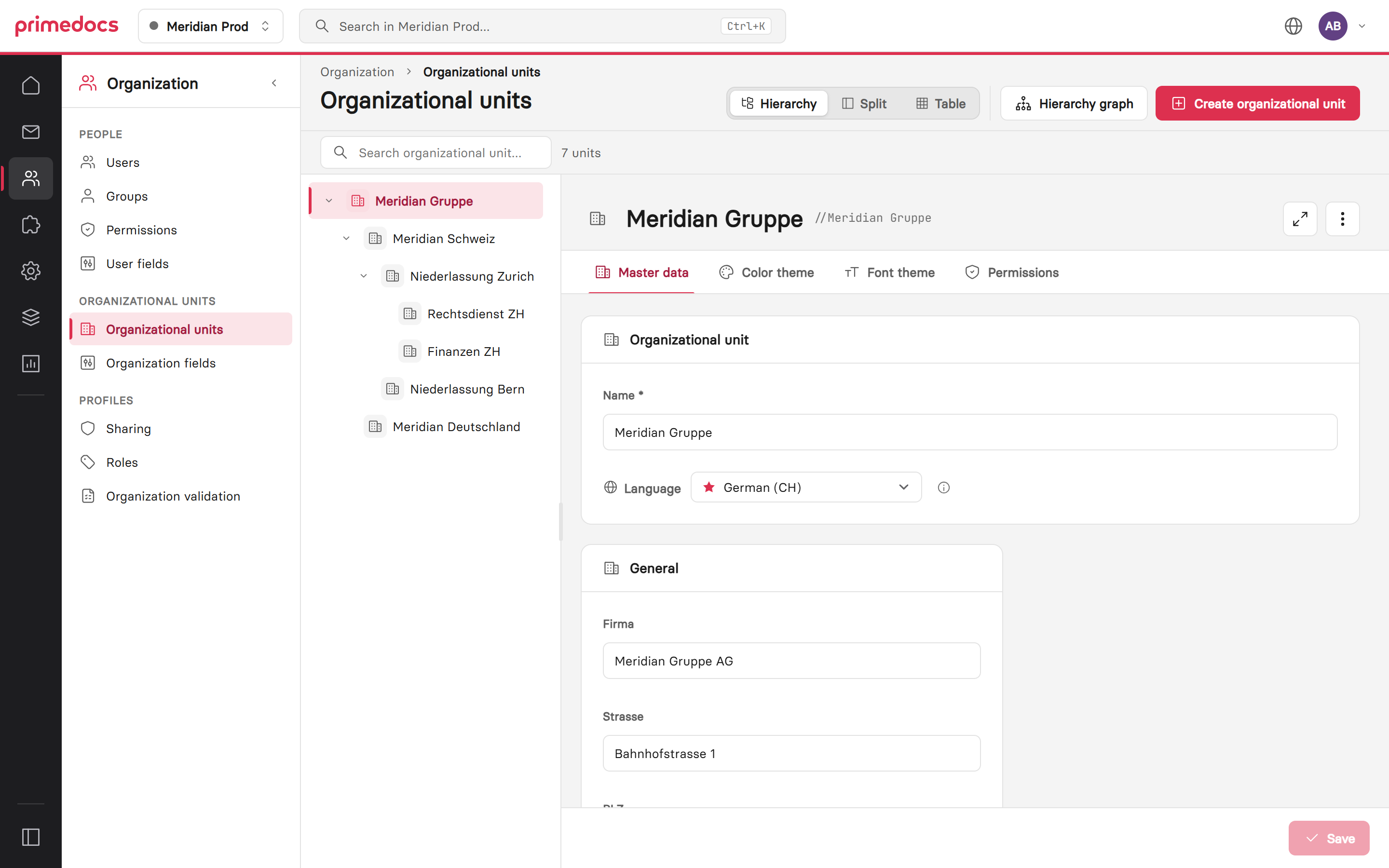
The hierarchy on the left, the selected unit on the right with the tabs Master data, Colour theme, Font theme and Permissions.
The field definitions of organizational units are managed under Organization fields.
Master data
The Master data tab contains the name and the organisational fields of the unit, such as company, address and contact details. Address and company details are multilingual: select the language at the top, empty fields of a language fall back to the main language. Inherited values are marked as «inherited». An overridden value can be reset per field with «Restore inheritance», the button is in the row of the field name. Until saving, the field is marked «inherited on save», afterwards the value of the parent unit applies again. If a translation has an own value in the main language, the button is called «Inherit from default language». The top unit only offers this reset. An empty name blocks saving.
Images and logos are uploaded with «Choose image» (PNG, JPEG, GIF, WebP, BMP or SVG) and applied when saving. Inherited images are marked «inherited», and an own image can be reset with «Restore inheritance».
Colour and font theme
The Color theme and Font theme tabs edit the colour themes and font themes of the unit. Both tabs offer visual editing and the XML editor. Configurations that cannot be shown visually open in the XML editor.
- Colour theme: colour schemes with identifier, display name and default flag, the twelve Office theme colours, fill, line and text colours, chart colours and deviations per application (Word, Excel, PowerPoint).
- Font theme: heading and body font, the fonts offered in the ribbon and the bullets.
Display names and colour labels are keys of the global translations. The input field suggests existing keys and shows whether the value is translated. A text without a key appears in square brackets in the client.
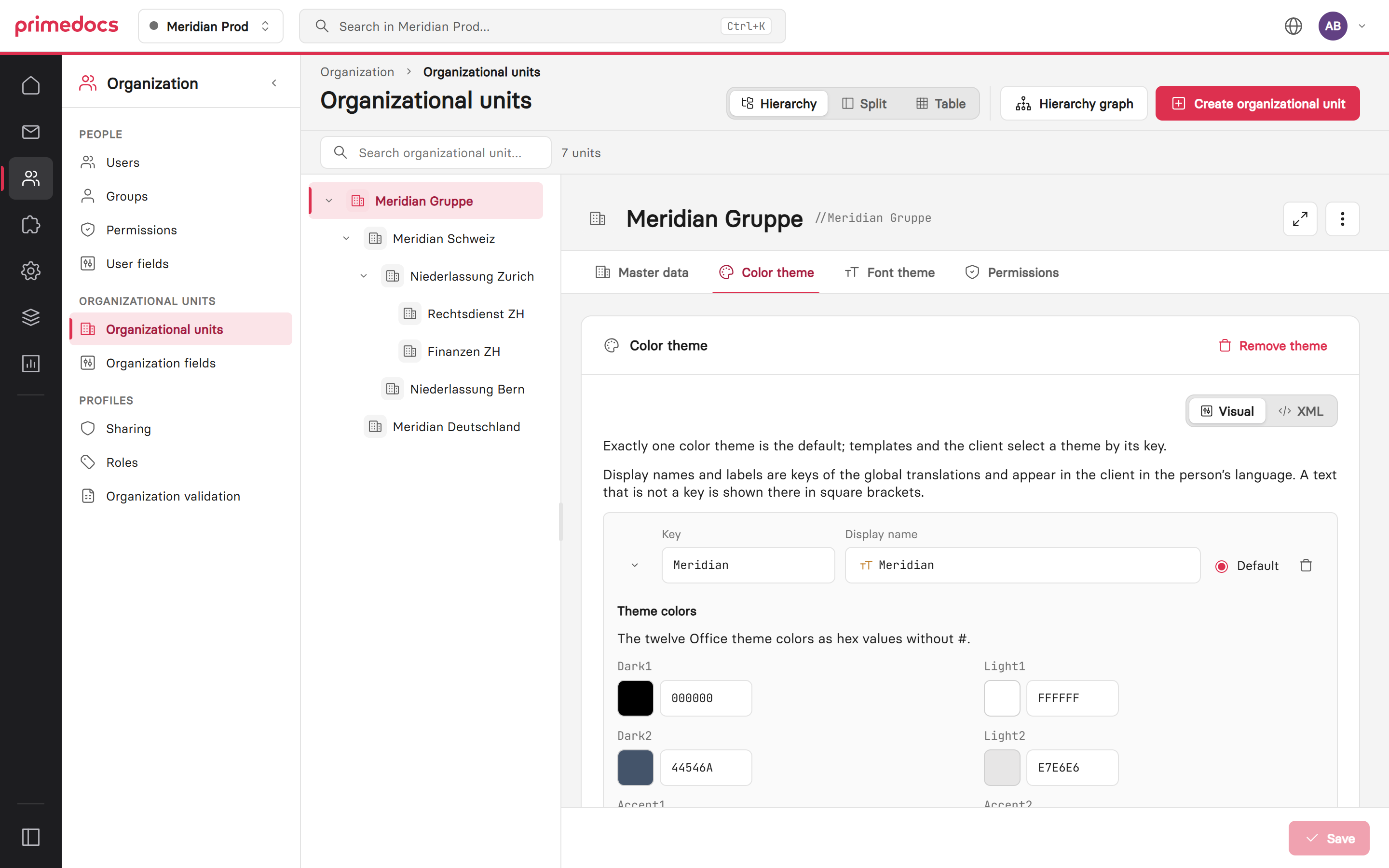
Visual editing of a colour scheme with the twelve theme colours.
Inheritance
If a unit has no theme of its own, the theme of the parent unit applies. It is shown read-only with «Inherited from …».
- Override: creates a copy of the inherited theme on this unit that can be edited and saved.
- Restore inheritance: deletes the sub-unit's own theme. Afterwards the theme of the parent unit applies again, also for sub-units without a theme of their own.
- Remove theme: deletes the theme of a top-level unit. Sub-units without a theme of their own then have none either.
Permissions
The Permissions tab defines which groups and users may use the unit for their profiles. The list shows the name and SID of each entry. Added and removed permissions take effect immediately. Accounts that already have permission are skipped when adding. See Permissions on organizational units.
Signature rules are still configured in primedocs Desktop.