Integrations
The Integrations area brings together the connection of the datasource to the directory, user synchronization and Connect. The User data section contains Identity provider, User synchronization and Directory switch, the Interfaces section the Connectors and primedocs AI. The area is visible to system administrators and developers, the directory switch only to system administrators.
Identity provider
The page shows the active directory connector (Active Directory, Microsoft Graph / Entra ID or SCIM) and whether the directory was reachable when the page was loaded. Which connector applies and how users sign in is defined in primedocs.config, not on this page.
The settings the connector uses to look up users and groups can be adjusted:
| Connector | Settings |
|---|---|
| All | Principal cache for group memberships (not for SCIM) |
| Active Directory | Domain, search root, user name and password for directory access (empty = service account), group searcher for nested groups, global catalog for environments with several domains |
| Microsoft Graph / Entra ID | «Grant consent» button for administrator consent in the Entra ID tenant. It appears when the server configuration contains a client ID. |
| SCIM | Display of the SCIM tenant from the server configuration |
The Web Admin does not show the password, only whether one is stored. An empty password field leaves the stored password unchanged. If a symmetric key is stored under Security & compliance, the password is stored encrypted, otherwise as entered. Storing a symmetric key is therefore recommended. The stored password applies only to the same domain, search root and user name. After changing any of these, it must be entered again, otherwise saving is not possible.
Display name
The Display name card defines how users appear in search, shares and documents. The display name becomes the user's title in primedocs. It either comes directly from a directory attribute or is composed by a rule from several attributes, for example «Ada Lovelace (Research)».
Without a rule, the editor shows a single building block with the name attribute. Available are msDS-PrincipalName (default), sAMAccountName, userPrincipalName, displayName or a custom attribute for Active Directory, userPrincipalName (default) or displayName for Entra ID and userName (default) or displayName for SCIM. As soon as further building blocks, text or fallback values are added, a rule is saved. A rule can be edited in two ways:
- Building blocks: «Add attribute» and «Add text» line up attributes and fixed texts, joined by the selected separator. For each attribute, a fallback attribute and a fallback text for empty values as well as text before and after can be set. Text before and after only appears when the attribute or its fallback value is filled. Empty building blocks are left out.
- JavaScript: An expression that returns the name as text, or functions with
function main() { return …; }.$("attribute")returns the value of a directory attribute,$.firstNonEmpty(…)the first non-empty text and$.joinNonEmpty(separator, …)joins the non-empty texts. Only attributes written as fixed text in$("…")are loaded. When switching to JavaScript, the editor converts the building blocks to code. Switching back discards the code.
$.joinNonEmpty(" ", $("givenName"), $("sn"))
With Active Directory, all attributes can be used, including extensionAttribute1 to extensionAttribute15 and freely typed names. With Entra ID, the properties that the user synchronization reads are available, except those Microsoft Graph only returns for a single user, with SCIM the attributes of the SCIM synchronization.
If the result of a rule is empty for a user, longer than 256 characters or the rule fails, the attribute under «If the name stays empty or the rule fails» applies. A sign-in never fails because of the rule.
The preview computes the name live from the directory without saving anything, by default for your own account or for a user found by search. «Test empty attributes» shows the result when values are missing.
The rule is saved with the page. New users and hits of the directory search show the new name after about a minute. The title of existing users is updated by the next run of the user synchronization. If the name cannot be determined, the previous title is kept and the sync report contains a warning. Groups keep their name from the directory.
User synchronization
The User synchronization page edits the configuration of the user synchronization (UserSyncConfig). The Sync pipeline switch turns synchronization on and off. The page also shows the time of the last successful run.
The configuration can be edited visually or in the XML editor:
- General: sync interval, timeout, persons per run, skipping locked fields and the automatic cleanup of persons who are no longer found.
- Sources: Active Directory / LDAP, Entra ID (Microsoft Graph), SCIM, HTTP endpoint, CSV file, SQL query and fixed values, in pipeline order. For each source, the connection details and the claims.
- Claims: claim type, property of the source, language, fallback value or omission for empty values, and a regular expression. The regex field has a test mode that shows matches and groups on sample text.
ResultMapping and field mappings of a source can only be edited in the XML editor and are preserved during visual editing. If the configuration contains elements the visual editor does not know, it opens in the XML editor. «Insert sample» replaces the content with a template for Active Directory or Entra ID, «Help» describes all elements.
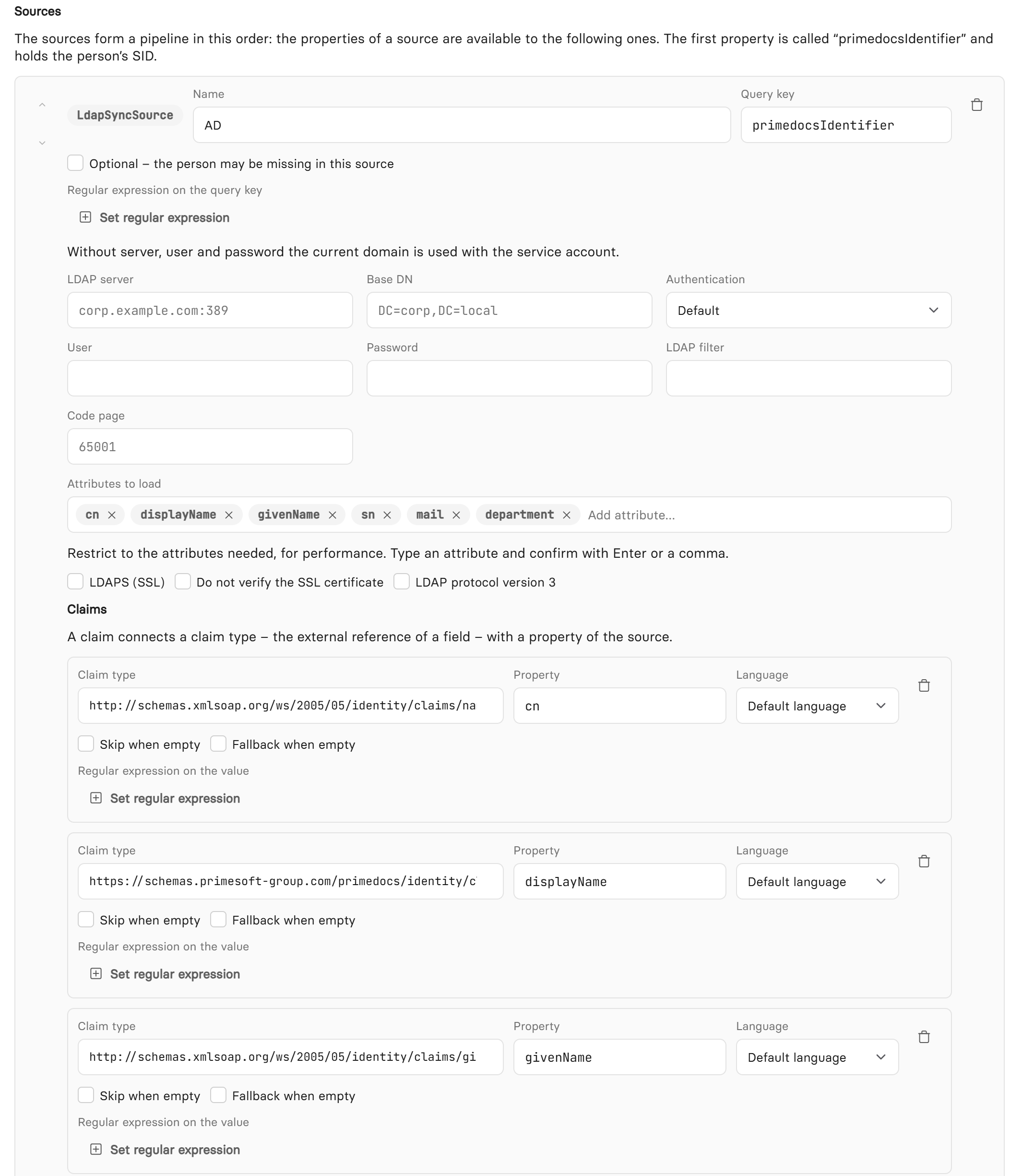
Visual editing of an Active Directory source with connection details, attributes to load and claims.
Sync test
The Sync test is a dry run without writing anything. Search for a person or enter their SID and choose «Test». For each source, the result shows whether the person was found and which properties were read, plus the claims produced at the end of all sources. The test uses the saved configuration, so save pending changes first.
Directory switch
When an organization switches directories, for example from Active Directory to Entra ID, users and groups get new identifiers there. primedocs, however, recognizes accounts by their SID. Without an adjustment, primedocs creates an empty new account at the first sign-in through the new directory, and profiles, roles and field values stay with the old account. The Directory switch page links the existing accounts to their new SID. Profiles, roles, group assignments and fields are kept. The page is reserved for system administrators.
Depending on the directory, the SID is the objectSid (Active Directory), the object ID (Entra ID) or the externalId (SCIM).
Run the migration before users sign in through the new directory. Anyone who signs in earlier automatically gets an empty account with the new SID. Such accounts appear as a conflict in the preview.
The wizard guides through the migration in four steps. A step that is already released can be clicked directly. A locked step names the reason on hover or focus.
- Prerequisite: The page shows the active connector and whether the directory is reachable. The wizard does not switch the directory. The preview always reads the currently configured directory, so the connector must already point to the new directory. When switching between Active Directory, Entra ID and SCIM, update primedocs.config first.
- Migrate users: Users are matched by a shared value. Choose a user field (text field, preset to the e-mail field) and the property in the directory,
mailby default. With SCIM,userName,displayNameandcustomAttribute1tocustomAttribute16are available. The exact value is compared, ignoring case. - Migrate groups: Groups are matched by their name, without the domain prefix. No setting is needed.
- Summary: The summary shows what will change. «Run migration» writes the users first, then the groups.
The preview changes nothing. With large directories it can take a few minutes. Each row has a status:
| Status | Meaning |
|---|---|
| To migrate | Found in the directory with a different SID. The new SID is proposed and can be changed in the row. |
| Already current | The account already has the SID from the directory. |
| Not found | No value in the selected field or no hit in the directory. |
| Conflict | The new SID would occur more than once after the migration. |
| Placeholder | The account has a placeholder SID from an earlier run. Users with a placeholder are excluded from the sync. |
All rows with the status «To migrate» and no conflict are preselected, as well as conflicts for which primedocs makes a suggestion. Rows that are not selected are not migrated.
Conflicts
A conflict arises when several accounts would get the same new SID or another account already holds it, typically an account that has already signed in through the new directory. The Conflicts view shows the accounts involved per contested SID, with last sign-in, last successful sync, number of profiles and whether a profile with an organizational unit exists.
For users, primedocs suggests an account when it clearly outranks all others: first a sign-in at least 30 days newer (or the only one with a sign-in at all), otherwise a successful sync at least 30 days newer, otherwise being the only one with a profile with an organizational unit. The number of profiles does not decide. For groups there is no suggestion. For each conflict, «Choose» sets the account that gets the SID, or «Skip» leaves the conflict out. If the SID belongs to an account of another kind, such as a group, the conflict is blocked and cannot be resolved here.
The other accounts of a resolved conflict get a placeholder SID of the form [migration-conflict]-<old SID>. Nothing is deleted. Users with a placeholder are excluded from the sync and are therefore not offboarded automatically.
Running the migration
The migration only changes the primedocs database, not the directory. If an entry cannot be applied, for example because the SID has changed since the preview or the new SID is now taken, it is rejected with a reason. The remaining entries are written. If accounts change during the run, for example through a concurrent sync, the migration aborts. The changes of the current part (users or groups) are rolled back. Then create the preview again and repeat the migration.
The migration cannot be undone automatically. The old and new SID are listed in the result and in the server log. A new run shows accounts that have already been migrated as «Already current». The migration can also be run through the Admin API.
Connectors
The Connectors page contains the policies for Connect and the connected services:
| Setting | Effect |
|---|---|
| Process call | Programs a Connect command may start on the client (name and path) |
| URL call | Addresses a Connect command may open, see InvokeUrl |
| Remote Connect policies | HTTP headers for retrieving Connect files from a URL |
| Document location policies | HTTP headers for remote storage locations. «Insert access token» inserts the placeholder for the token of a Connected Service. |
Entries that are too broad open the client to unwanted calls. Keep entries as narrow as possible.
The same page manages the Connected Services: OAuth access with name, key, description, active status, authorize and token URL, client ID, client secret, scope and URL patterns. The client secret is stored encrypted with the symmetric key of the datasource.
primedocs AI
primedocs AI maintains the prompts that appear as buttons in the AI function of primedocs Web: title (as tooltip), icon (flag code such as fi-gb, short text or emoji) and the instruction for the language model. Prompts take effect only once an OpenAI endpoint is configured on the server. Otherwise the page points this out.