Groups and permissions
Organization › Groups manages the groups of the datasource, Organization › Permissions the role assignments. The concepts behind them are described in Groups and Roles.
Groups
Groups are managed by system administrators and user administrators. The list distinguishes three types:
| Type | Management |
|---|---|
| Directory group | Group from Active Directory, Entra ID or SCIM. Members are managed in the directory and are not listed in the Web Admin. The name in primedocs can be adjusted. |
| Static app group | primedocs group with a fixed list of users. «Add users» in the Members tab adds individual users. |
| Dynamic app group | primedocs group whose members are determined by a rule. The member list is read-only. |
Use «New group» to search the directory for a directory group and take it over with «Add & onboard», or to create a static or dynamic app group. A directory group is synchronized and its name kept up to date only after onboarding. Directory groups and app groups remain separate. An app group counts as dynamic as soon as a rule is saved, and as static again when the rule is cleared. Before a rule makes a static group dynamic, the Web Admin asks for confirmation, because the next time memberships are applied the rule replaces the members added by hand.
A deleted directory group is only removed from primedocs. It remains in the directory and can be onboarded again.
Anyone who changes the members, rule or execution of an app group or deletes a group must hold every role the group grants, including through parent groups. System administrators always may, the basic User role does not count. This way nobody can gain roles through a group that they do not hold. Nobody can delete the last holder of the System Administrator role.
Checking and applying dynamic groups
The rule of a dynamic group is maintained as JavaScript in the Master data tab. The editor highlights the syntax and checks the rule while typing. A syntax error is reported with line and column and underlined in the editor. As long as it exists, the group can neither be created nor saved. Structure and examples are given under Configuring dynamic groups.
- Edit and save the rule.
- Choose «Calculate preview». The preview evaluates the saved rule without changing anything and shows how many users match the rule, who is added and who drops out. The lists show at most 100 entries, the totals are complete.
- Choose «Apply memberships» and confirm to update the members immediately.
If the group has been saved since the preview, primedocs applies nothing. The Web Admin loads the current state, then calculate the preview again. If only field values of users have changed in the meantime, primedocs applies the current result of the rule. Independently of this, the background job continues to update the members of dynamic groups periodically.
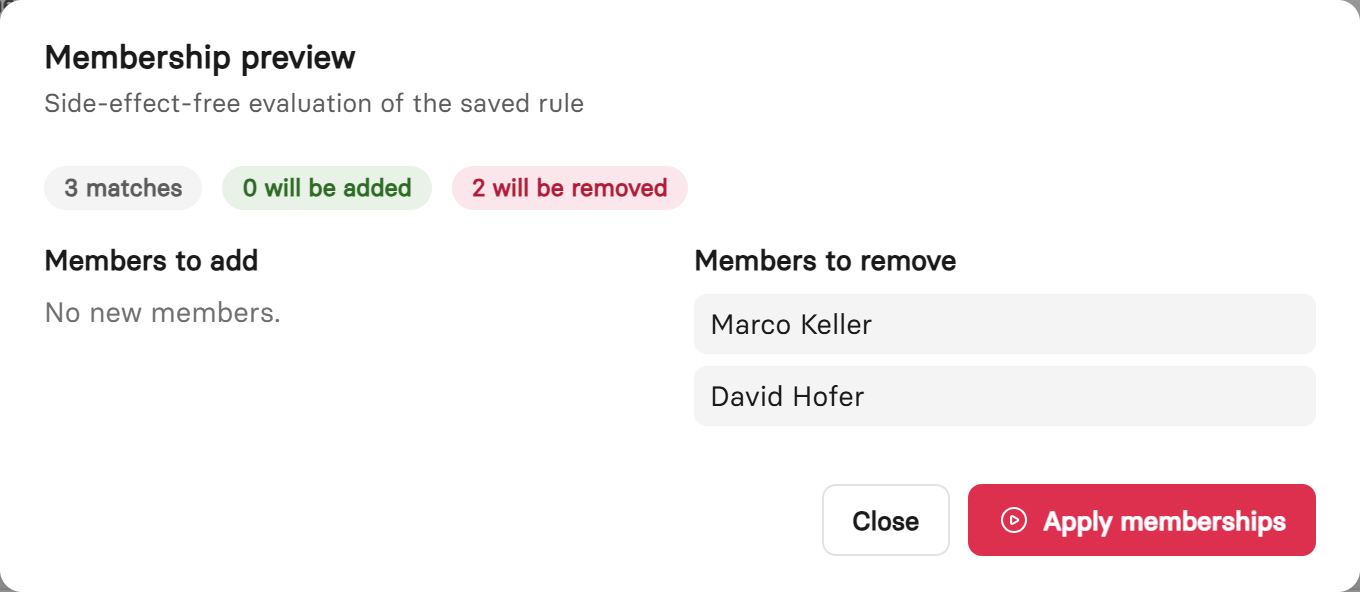
Before applying, the preview shows which members are added and which drop out.
Permissions
The Permissions entry is reserved for system administrators. It lists the eight fixed roles of primedocs with the number of assigned groups and users. A selected role shows two lists:
- Assigned groups: «Assign group» gives the role to all members of a group. This is the recommended route, because anyone who joins the group receives the role automatically.
- Directly assigned users: «Assign user» gives the role to individual users regardless of their groups, for example for exceptions.
Which areas of the Web Admin a role unlocks is fixed, see Roles and visible areas.
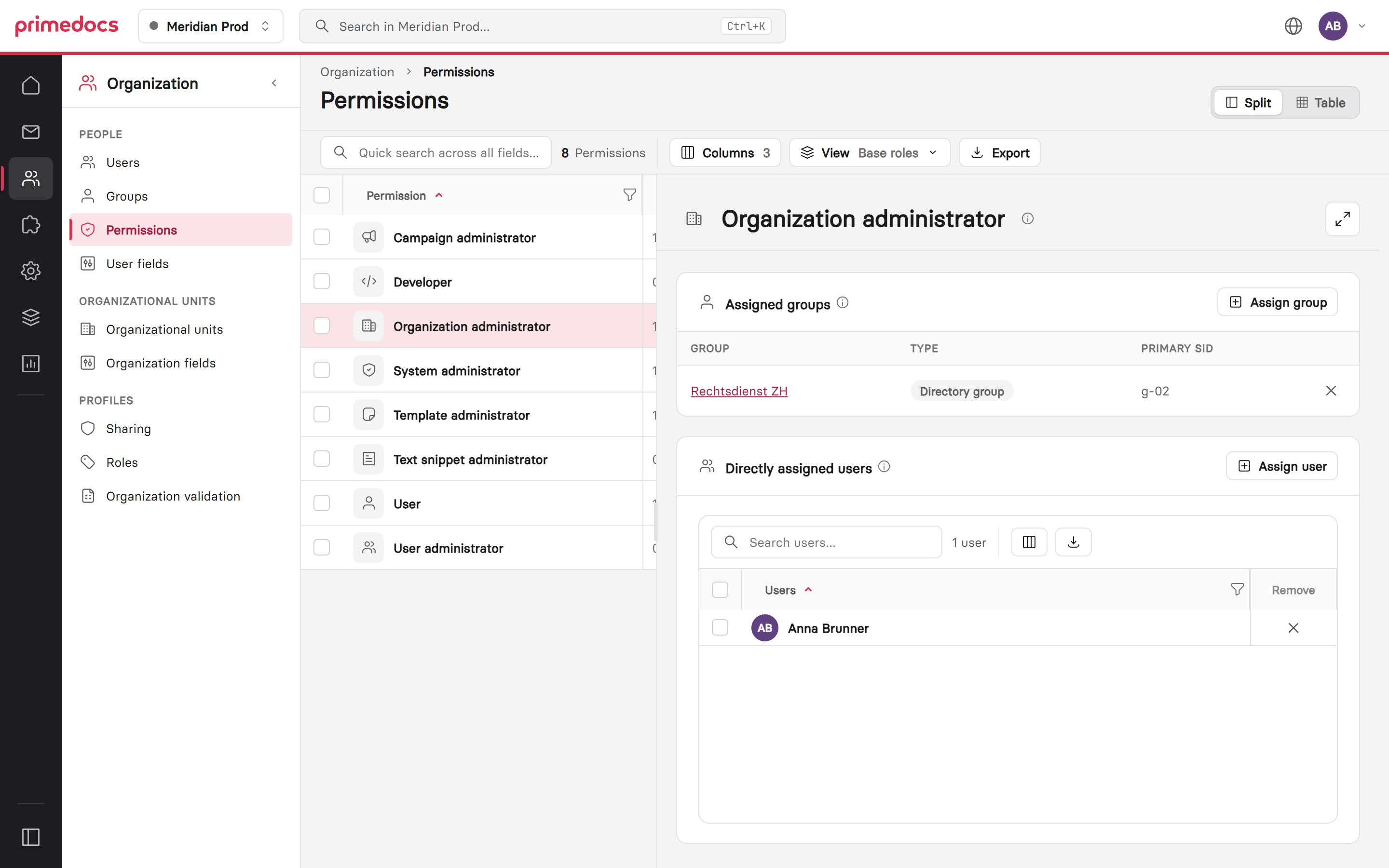
The assigned groups at the top, the directly assigned users below.
A role can also be assigned to individual users directly from the user list. Which roles a user holds in total and where they come from is shown in the user's Permissions tab.