Word Add-In
Word ribbon
As soon as a document has been generated, the following ribbon appears in Word:

It contains the most important commands for editing the current document.
IMPORTANT The automatically filled fields (all fields in the header and footer) should only be changed via the properties dialog. This ensures the changes are preserved and not overwritten the next time the document is opened.
primedocs group
Clicking the primedocs button returns to the template overview in the primedocs app at any time. The button's menu also lets you open the help.
Document group
Properties: Opens the Properties dialog again for further adjustments — for example to change the recipient or field values.
Profile: Switches the profile, provided several profiles are available.
Language: The button for the document language is located directly below the profile selection. Changing the document language also switches the spell check language of the entire document.
Content group
Snippets
Snippets are blocks of content (text, tables, images, etc.) that can be saved and reused in any other document without copying and pasting.
There are two types of snippets: custom and shared (see also The snippet principle).
Custom snippets: Every user can create their own snippets; they belong to that user alone.
Shared snippets: Shared snippets are created centrally and are accessible to everyone or to specific user groups.
In addition, there are template snippets: they are defined while building a template and are only available to users with templating permission (see Snippets in the layouter documentation).
Create snippets: Drag a selected text to the right-hand area, e.g. under "Custom snippets". A window opens for the snippet name; correct the document language if necessary and confirm with OK.
Insert snippets: Click at the target position, then double-click the desired snippet in the snippets panel, or drag and drop it into place.
Snippets in different languages: Different language versions of the same snippet can be overlaid. primedocs then automatically inserts the snippet in the correct document language.
Quick Check
Quick Check: Opens a side panel that navigates through the document and checks open points. The button appears when the feature is configured for the template.
Format group
Fill colour / Line colour / Text colour: Three buttons for colour management according to the design (CI/CD) of the organizational unit.
General Word formatting: The standard text formatting section for fonts, indents, text alignment, etc. "Standard" resets the formatting of the current paragraph.
Completion group
Print: Opens the Word print dialog (same as Ctrl+P).
Send: Opens a menu to send a copy of the document as an attachment by e-mail — either as a Word attachment or as a PDF attachment.
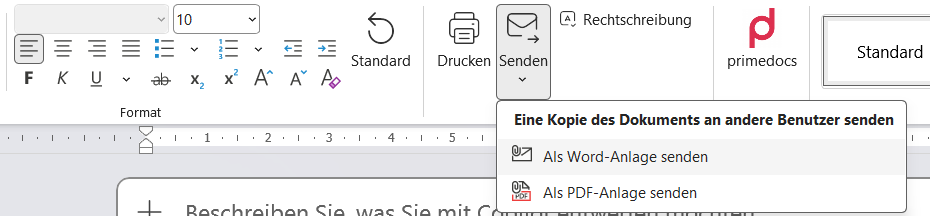
The "Send" menu: send a copy of the document as a Word or PDF attachment (shown in German).
Output: Generates the output and delivers it according to the selected configuration. The button only appears if output management is configured (see Output Management).
Dispatch Manager: Prepares and generates dispatch documents. In the dialog, labels, dispatch type (A/B mail) and output channel can be set per recipient; then Print or Generate. The button appears when successor documents are configured for the template.
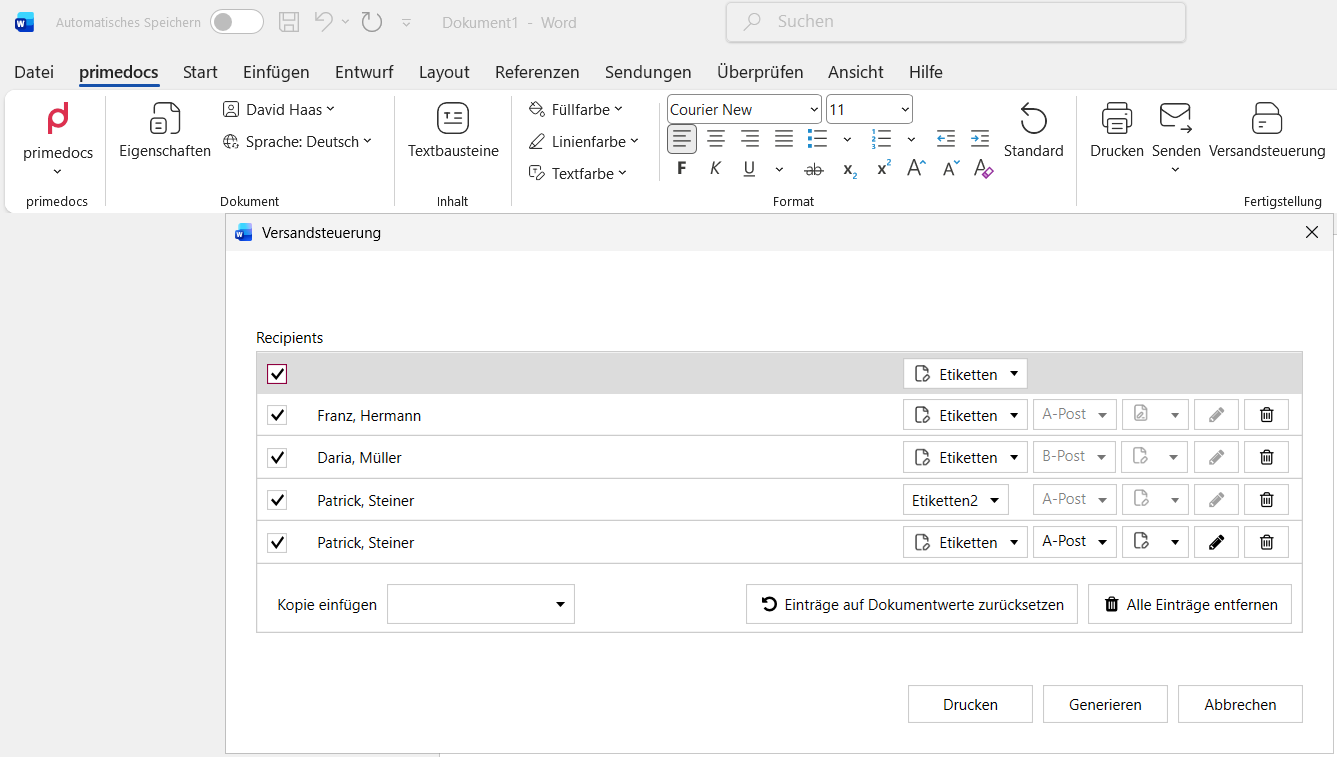
The "Dispatch Manager" dialog: choose labels, dispatch type and output channel per recipient — then "Print" or "Generate" (shown in German).
Spelling: Triggers a spell check run.