Outlook Add-In
This page describes the add-in in classic Outlook for Windows. The new Outlook uses the Office Web Add-Ins.
Outlook main window
The main Outlook window shows:
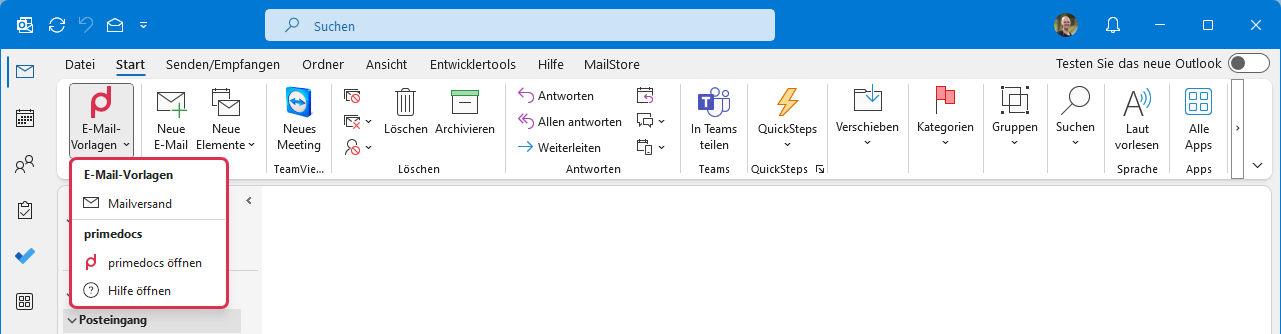
Email Templates button: The only indicator for primedocs is the "Email templates" button with the primedocs signet. Clicking it opens a menu with the available e-mail templates plus the entries Open primedocs and Open help.
New e-mail message
If a new message is opened, the primedocs Outlook add-in comes into play:
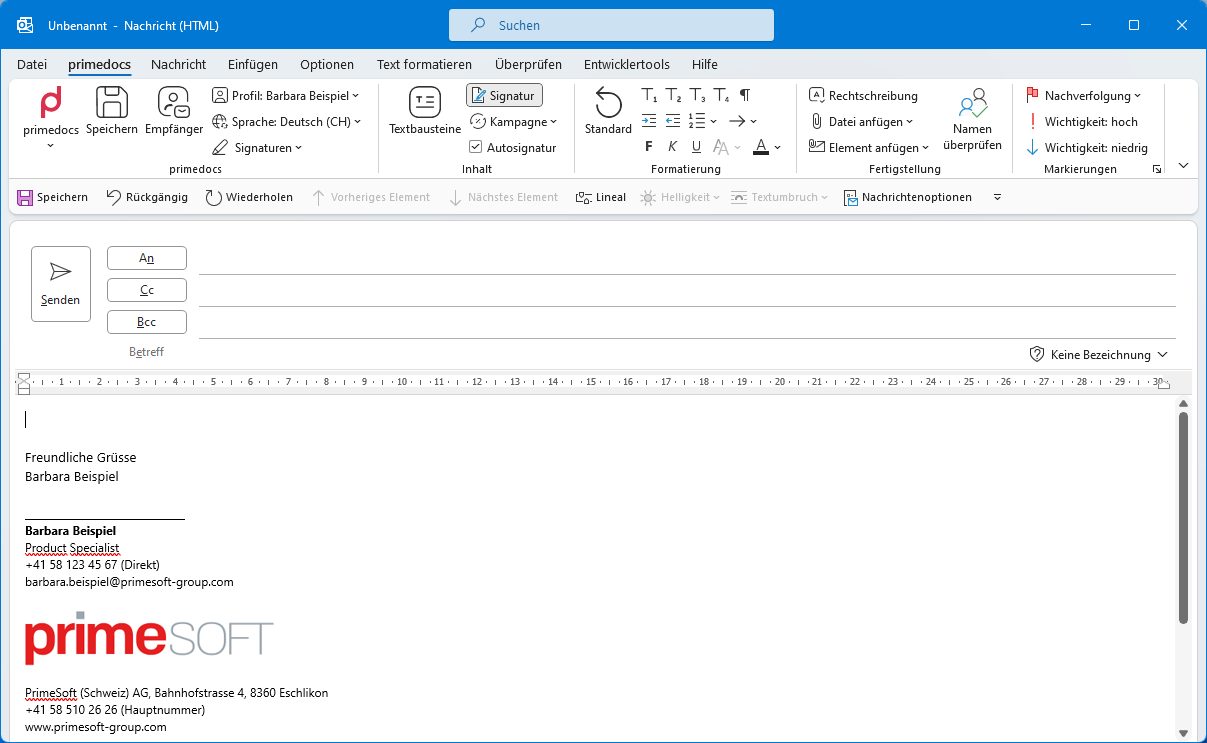
primedocs / Save / Recipient / Profile / Language: The first part of the ribbon is identical to the add-in in Word, PowerPoint and Excel.
Signatures: The "Signatures" drop-down button is only available in Outlook. It selects which email signature to use — the primedocs signatures (e.g. internal, external, external reply) as well as the classic Outlook signatures.
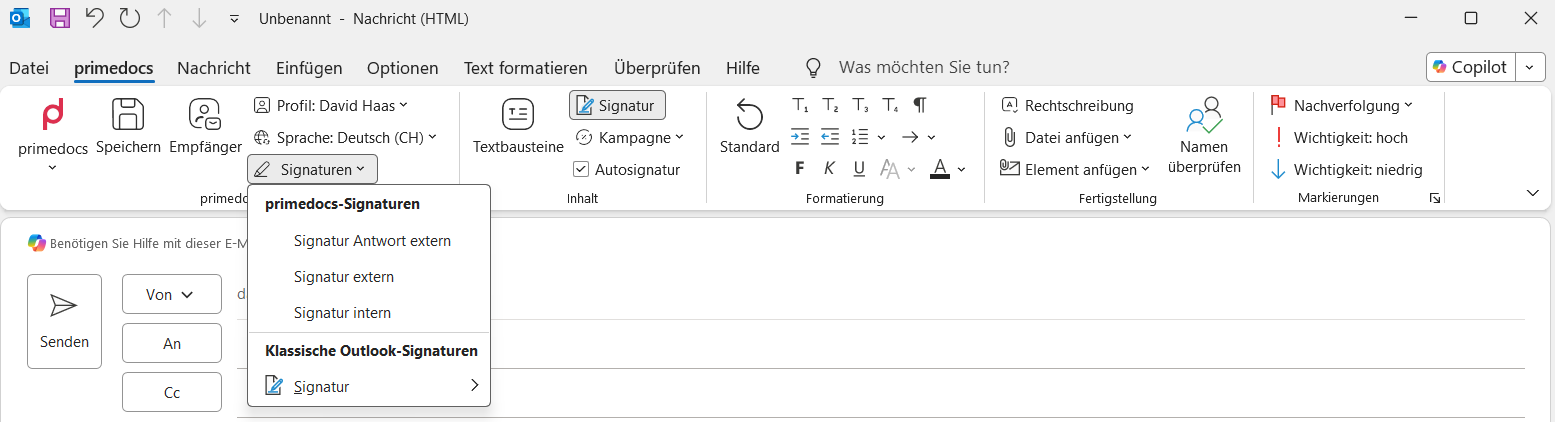
The "Signatures" menu: primedocs signatures and classic Outlook signatures to choose from (shown in German).
Content group
Snippets: Brings up the same sidebar as in Word with the same snippets.
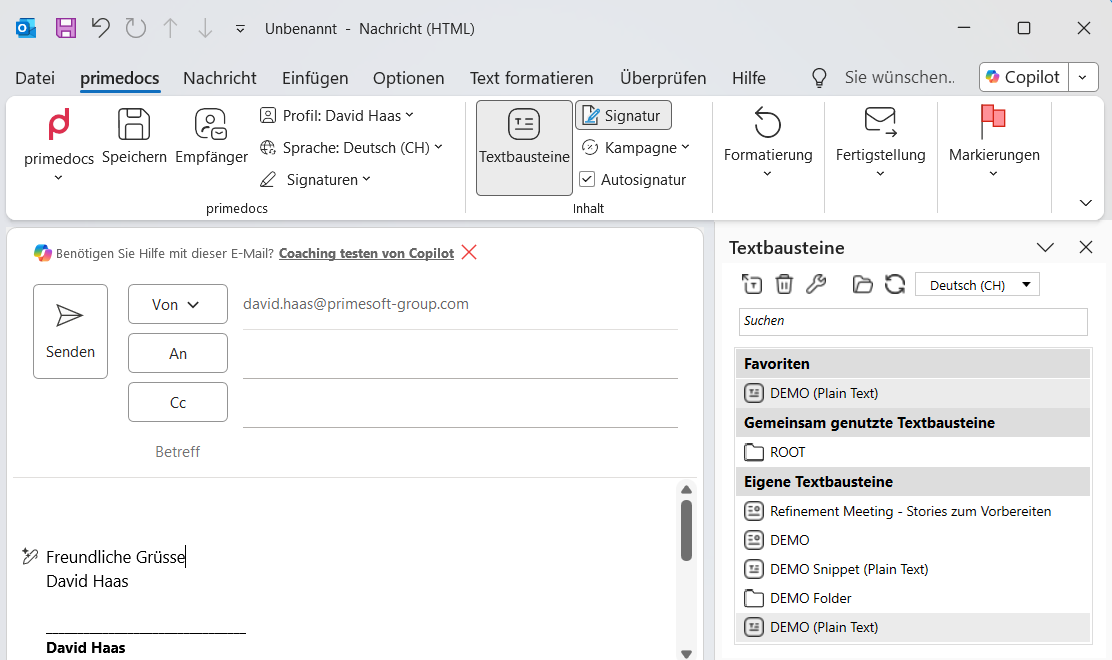
The snippet side panel in Outlook — the same snippets as in Word (shown in German).
Signature: The "Signature" button is an On/Off switch that shows or hides the signature.
Campaign: Selects a campaign banner to be inserted into the signature of the message.
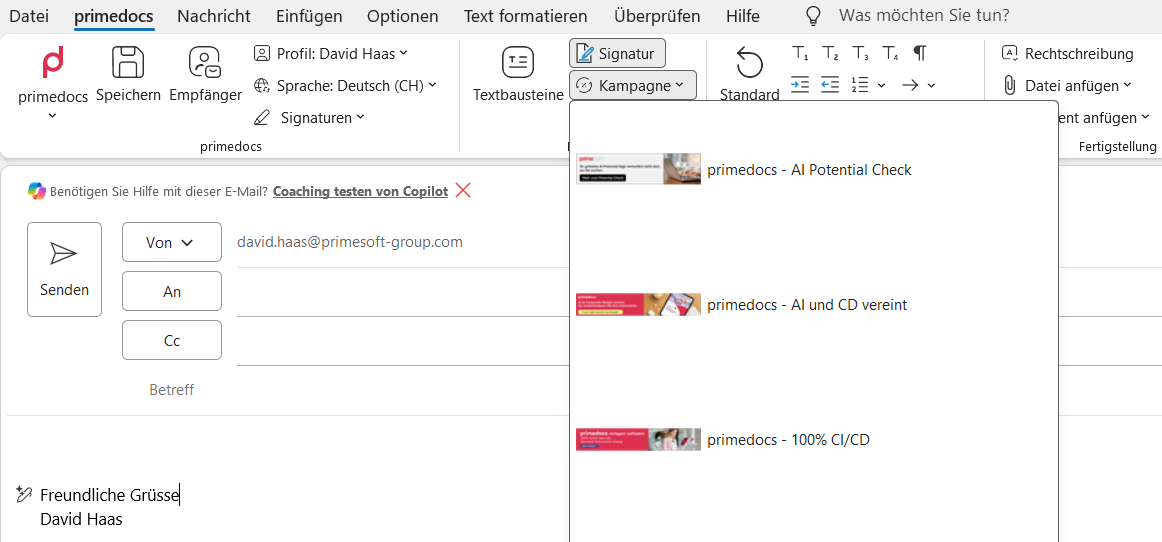
The "Campaign" menu: choose from the available campaign banners with a preview (shown in German).
Auto signature: When activated, the recipients of the e-mail are checked. If only internal addresses are involved, the system automatically switches to the internal signature. As soon as an external e-mail address is recognised, the system automatically switches to the external signature.
Classification: Adds a defined classification to the subject (e.g. "Internal", "Confidential"). Appears only when classifications are configured.
Sensitivity: Sets the sensitivity level of the message. Appears only when configured accordingly.
Format group
Standard: Resets the formatting of the current paragraph to the corporate design.
Title: Assigns one of the title levels (Title 1–4) in the corporate design to the selected text.
Indent / Numbering: Increase or decrease the indent and choose the numbering style and behaviour.
Bold / Italic / Underline: The familiar text emphases.
Styles: Applies predefined paragraph and character styles of the corporate design.
Theme colours: Text colours from the corporate design's colour palette.
Completion group
Spelling: Performs a spell check.
Attach File: Opens a drop-down menu of recently opened files.
Attach Item: Similar to "Attach file", but also includes business cards and other items.
Check Names: Outlook matches the names against known email addresses. Keyboard shortcut: Ctrl+K.
Tags group
These buttons are standard Outlook functions carried along in the primedocs ribbon.
Follow Up: Flags an email for follow-up.
High / low Importance: Marks the email accordingly.