Excel Add-In
Ribbon
When a workbook has been created with primedocs, this ribbon appears in Excel:

The primedocs ribbon in Excel (product UI in German).
The ribbon is deliberately built the same way as in Word and PowerPoint — the first buttons (primedocs, Properties, Profile, Language) are identical everywhere.
primedocs
Clicking the primedocs button returns to the template overview in the primedocs app at any time. The button's menu also lets you open the help.
Workbook
Properties: Opens the Properties dialog again for further adjustments.
Profile: Switches the profile, provided several profiles are available.
Language: Changes the document language.
Apply theme: Applies the design colours and fonts of the default profile to the workbook. The button becomes active only once a profile and language have been chosen and no cell is being edited.
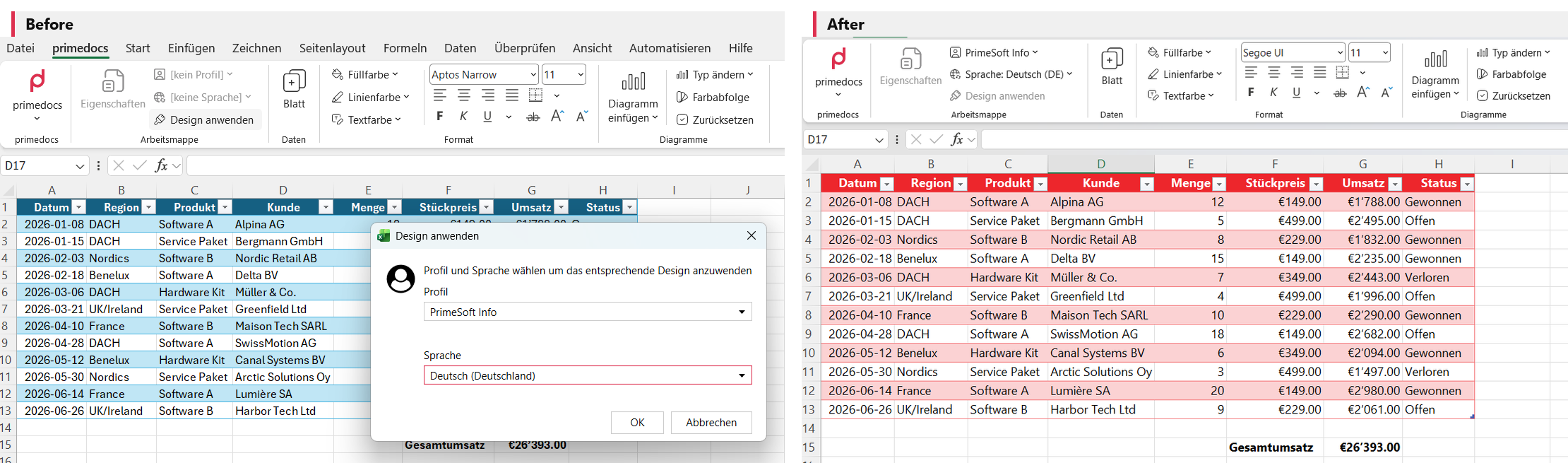
"Apply theme": choose a profile and language — the workbook adopts the corporate design's colours and fonts (shown in German).
Data
Sheet: Adds a new worksheet to the workbook with the correct colour and font theme.
Format
Fill colour / Line colour / Text colour: Colours for fills, lines and text — selectable separately, the same tools as in Word and PowerPoint, according to the design (CI/CD) of the organizational unit.
Text formatting: Font and font size, alignment (left, centre, right, justified), borders as well as bold, italic, underline and strikethrough — the familiar Excel tools, reproduced here so you don't have to switch ribbons constantly.
Charts
Insert chart: Inserts a chart of the chosen type. primedocs controls colours more strictly than Excel.
Change type: Changes the chart type of the selected chart.
Colour sequence: Changes the colour sequence in the selected chart, within the CI guidelines.
Reset: Resets the entire chart to its default colours, fonts and other design settings.
Productivity
Output: Generates the output and delivers it according to the selected configuration. The button only appears if output management is configured (see Output Management).
For a workbook that was not created with primedocs, many buttons are greyed out. In that case, "Apply theme" transfers the colours and fonts of the default profile to the workbook.