Accessing primedocs fields
primedocs provides numerous fields. These fields are text containers with an id whose content is determined during generation by the document functions and/or by a Connect call.
In web-capable templates, all profile data of the current user is available automatically. The most important document functions for this are:
- Forms — enables the entry of user data.
- Data — used to transmit data via the Connect interface.
- Fields — used to merge or transform data.
Depending on type and application, the document functions are inserted as the corresponding content controls. This creates a data binding between primedocs and the document. primedocs tracks these data bindings and validates the fields both during generation and during later updates.
Overview: field type per Office application
The following matrix shows which field types are directly supported in which Office applications:
| Word | Outlook (web) | PowerPoint | Excel | |
|---|---|---|---|---|
| Text | ✓ | ✓ | ✓ | ✓ |
| FormattedText | ✓ | ✓ * | ✓ | ✗ |
| WordContent | ✓ | ✗ | ✗ | ✗ |
| InlineWordContent | ✓ | ✗ | ✗ | ✗ |
| WordTableRows | ✓ | ✗ | ✗ | ✗ |
| Date | ✓ | ✗ | ✗ | ✗ |
| YesNo | ✗ | ✗ | ✓ ** | ✗ |
| Picture | ✓ | ✓ | ✓ | ✓ |
| Object | ✗ | ✗ | ✗ | ✗ |
| ObjectCollection | ✗ | ✗ | ✗ | ✗ |
* Outlook e-mails and signatures are only stored as HTML in the web-capable Outlook version. Global translations of type FormattedText can contain arbitrary HTML elements via the FormattedText field in Outlook templates and are therefore more flexible than those in Word or PowerPoint templates. For a list of the permitted HTML elements in Word and PowerPoint, see FormattedText.
** In PowerPoint, YesNo only controls the visibility of shapes and slides — via the tags PRIMEDOCS.VISIBILITY, PRIMEDOCS.PLACEHOLDER.VISIBILITY and PRIMEDOCS.REMOVEIFNOT. A YesNo field does not output any text itself.
Field types that cannot be used directly (✗) can be used via Text or FormattedText.
Word
primedocs allows fields to be linked directly within Word templates and embedded in snippets. This enables documents to be created dynamically and automatically — without manual rework.
Inserted content control per field type
| Field type | Content control |
|---|---|
| Text | PlainText |
| FormattedText | RichText |
| WordContent | RichText |
| InlineWordContent | RichText |
| WordTableRows | RichText (table row only) |
| Date | Date |
| YesNo | Cannot be inserted. |
| Picture | Image |
| Object | Cannot be inserted. |
| ObjectCollection | Cannot be inserted. |
A Picture field creates a picture content control in the text flow. For freely positioned images — a logo in the header, for example — do not set the wrapping on the image; place the image inside a text box instead: Images in Word Templates.
Inserting a Forms field into a template
- Create a field in Forms.
- Open the Word template in primedocs.
- On the primedocs tab, group Templating, click «Bind field». The pane of the same name opens on the right and stays open throughout the template work.
- Place the cursor at the correct position in the document.
- Choose the Forms field in the list — the filter box above the list narrows long lists down.
- Confirm by double-click, with the Enter key or with «Insert».
The cursor then sits behind the content control created, so the next field can be inserted without reopening a selection. Hold Ctrl or Shift to mark several fields and insert them one after another in the order they were picked. The further capabilities of the pane — change a binding, reload fields, layout placeholders — are described in Ribbon groups for template editing.
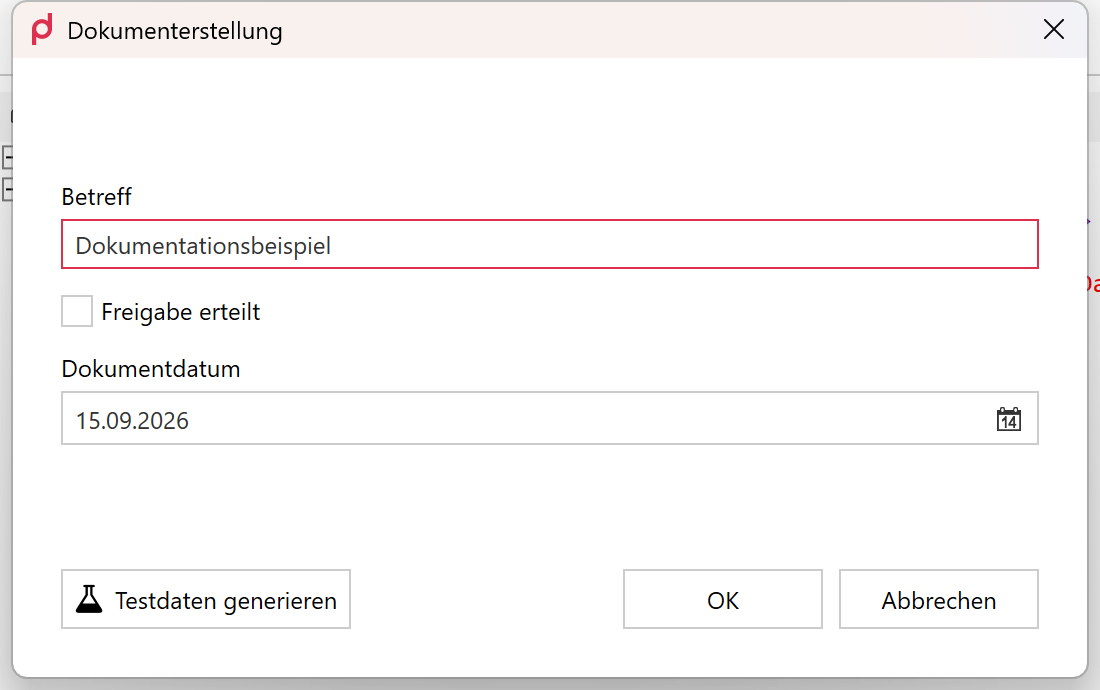
Example with three Forms inputs.
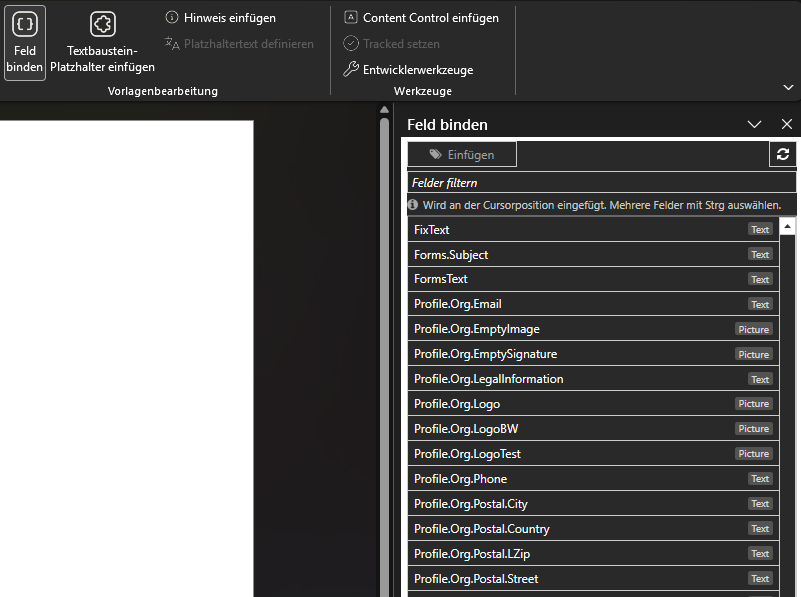
The status line states before the click what will happen; each entry carries its field type on the right.
YesNo fields are not offered in Bind field — in the example above, the field labelled «Freigabe erteilt». If the template contains no bindable fields, the pane reports «No fields available.».
For bound images in header tables, follow the placement recommendation.
Placeholders for layout templates
Fields can be stored directly in content templates. For layout templates, placeholders must be created.
Placeholders for snippets
Snippets that are inserted during document generation via the $.snippets… JavaScript API also require suitable placeholders. These act as the link between the dynamic field data and the static text content of the snippets.
Snippet Placeholder- Allows the embedding of simple
Textor field references via$.getReference(...). - The placeholder's formatting is retained and not overwritten by the inserted content.
- Allows the embedding of simple
Snippet Block Placeholder- Supports the embedding of
FormattedTextandWordContent. - The formatting is fully taken from the inserted content.
- Corresponds to a complete paragraph in Word.
- Supports the embedding of
Snippet Inline Placeholder- Allows the embedding of
InlineWordContent, e.g. formatted text parts within a paragraph. - The content must consist of exactly one paragraph.
- The formatting comes from the inserted content and may differ from the surrounding text.
- Allows the embedding of
Snippet Table Row Placeholder- Used for the dynamic generation of table rows.
- The placeholder must enclose a complete table row.
- The expected content type is
WordTableRows, which can contain further sub-types (Text,WordContent,FormattedText,InlineWordContent).
Colour coding
In Word, content controls are highlighted in colour depending on type and mode. This makes them easier to distinguish visually during editing and review. The coloured squares in the tables below represent the highlight colour of the respective content control:
- 🟦 Blue — a directly bound field, or the state after generation.
- 🟨 Yellow —
Snippet Placeholder. - 🟧 Orange —
Snippet Block Placeholder. - 🟩 Green —
Snippet Inline PlaceholderandPlaceholderin the layout. - 🟪 Purple —
Snippet Table Row. - ⬛ Black — a content control that will not be visible after generation (highlight in test mode).
| Mode | Description |
|---|---|
| Editing mode | Content controls are colour-coded to show how they work. |
| Test mode | Additional highlighting in ⬛ if the content control should not be visible later. |
| After generation | The content controls are either hidden or shown in 🟦. |
Behaviour when using $.getReference(...)
Snippet placeholders can be linked directly to fields via the JavaScript API $.getReference(...):
- With field link: the field is inserted directly; the content control is retained and behaves like a regularly bound field.
- Without field link: static content is inserted; the original content control is replaced by the inserted content.
| Type | Content control colour |
|---|---|
| Field inserted directly («Bind field») | 🟦 |
Field inserted directly with word-UpdateBehavior="Disable" (only for FormattedText, WordContent, InlineWordContent, WordTableRows) | ⬛ in test mode, invisible after generation |
Snippet Placeholder | 🟨 in editing mode, invisible or 🟦 after generation |
Snippet Block Placeholder | 🟧 in editing mode, invisible or 🟦 after generation |
Snippet Inline Placeholder | 🟩 in editing mode, invisible or 🟦 after generation |
Snippet Table Row | 🟪 in editing mode, invisible or 🟦 after generation |
Placeholder in the layout | 🟩 in editing mode, 🟦 after generation |
PowerPoint
In PowerPoint, data binding is done via tags attached directly to shapes or slide objects. These tags act as identifiers through which content is dynamically assigned and updated.
| Tag | Description |
|---|---|
PRIMEDOCS.FORMATTEDTEXT | Display the formatted content from a FormattedText field |
PRIMEDOCS.PICTURE | Display an image |
PRIMEDOCS.PLACEHOLDER.PICTURE | Master template: image placeholder |
PRIMEDOCS.PLACEHOLDER.TEXT | Master template: text placeholder |
PRIMEDOCS.PLACEHOLDER.VISIBILITY | Master template: visibility placeholder |
PRIMEDOCS.TEXT | Display a text |
PRIMEDOCS.VISIBILITY | Controls the visibility of an element |
PRIMEDOCS.BRINGTOFRONTIFOVERLAPPED | Can be enabled for elements in the slide layout or master. Ensures that these elements are not covered by an image placeholder but always stay in the foreground. Available from version 4.0.30114.0. |
The complete list — including picture placement, slide tags and which tags are available in which template type — is given under PowerPoint tags.
Excel
In Excel, the data is managed via a hidden worksheet. This sheet contains the structured field data, which can be embedded into other areas of the file via formulas or cell references.